
All tickets are in Customers > Tickets. The tickets changed most recently (new message, new properties) are at the top.
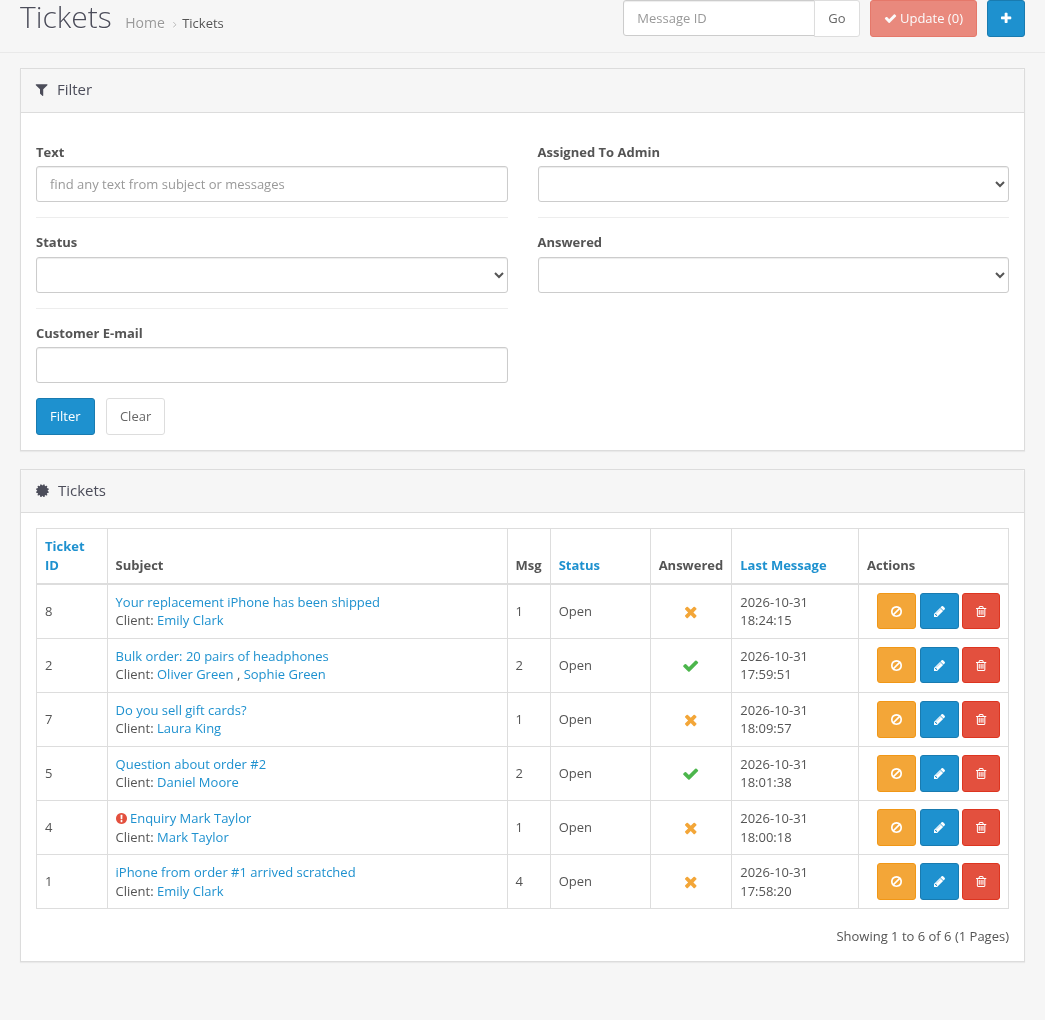
Columns
| Column | Description |
|---|---|
| Ticket ID | The ticket number. Customers see the same number in the email subjects, for example [#1]. |
| Subject | Click it to open the ticket. Client lists the customers of the ticket with links to their accounts. A red exclamation icon means that the email of the ticket is not verified (see Email Verification, Contact Form and Ticket Sources). |
| Msg | The number of messages. |
| Status | Open or Closed. |
| Answered | A green check: an administrator has replied and the customer has not written since. A red cross: the ticket waits for an answer. |
| Last Message | The date of the last message in the ticket. By default the list is sorted by this column, the tickets with the newest messages first. |
| Actions | Ban (orange, block the sender, see Banned Emails), Edit (blue, open the ticket) and Mark for deletion (red). |
You can sort the list by Ticket ID, Status and Last Message.
Filters
| Filter | Description |
|---|---|
| Text | Finds the text in the subjects and in the messages. |
| Status | Open or Closed. |
| Customer E-mail | Tickets of the customer with this email. |
| Assigned To Admin | Me shows only the tickets assigned to you. |
| Answered | No shows the tickets waiting for an answer. |
The module remembers the filter of every administrator, so you see the same list after you return to the page. Clear resets the filter.
A good working view for every administrator is Status: Open, Assigned To Admin: Me, Answered: No.
Finding a message by its ID
Every message on the ticket page has a number, Message ID. Enter it in the Message ID box at the top of the list and click Go to open the ticket with this message. This helps when a colleague or the error log refers to a message number.
New ticket
The Add New button (plus icon) opens the form for a ticket written by you to a customer. See Working with a Ticket.
Deleting tickets
- Click Mark for deletion (trash icon) in the rows of the tickets to delete. The row is marked, the icon changes to Undo.
- Click Update (N) at the top of the page, where N is the number of marked tickets, and confirm.
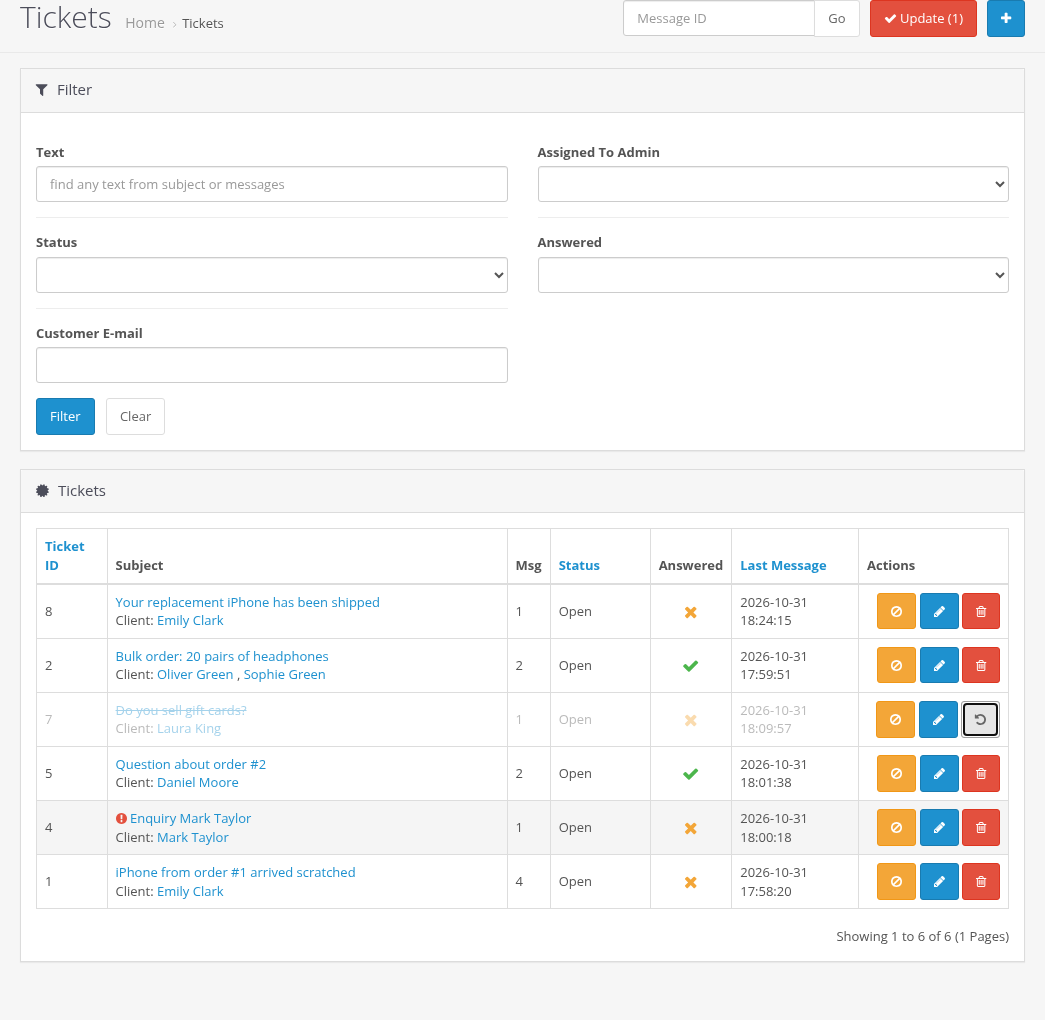
The tickets are deleted with all their messages and files. This cannot be undone. Deleting needs the modify permission for the tickets page (see Permissions and Security). The customer accounts are not deleted. Every deletion is written to system/storage/logs/ka_messages.log with the name of the administrator.
To delete a single message instead of the whole ticket, use Delete next to the message on the ticket page (see Editing, Moving, Splitting and Deleting Messages).