
Spam and unwanted senders can be blocked. Nothing is created for messages from a banned address: no tickets, messages, customer accounts or emails.
Ban the sender of a ticket
- Open the ticket and click Ban Sender, or click Ban (the orange ban icon) in the row of the ticket in the list.
- The dialog shows the email of the ticket author. Change it to a mask if needed, for example
*@bulk-mailer.examplefor the whole domain. - Add a Comment if you want to remember the reason.
- Choose what to do with the existing tickets: - Delete this ticket; - Delete other open tickets from this address.
- Click Ban.
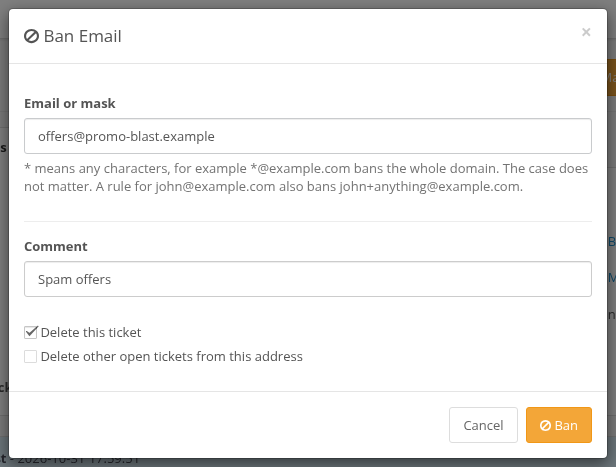
Ban Email dialog
Deleting tickets in this dialog needs the modify permission for the tickets page. Without it the address is banned and the tickets stay. Closed tickets of the sender are never deleted by the dialog. The customer account of the sender is not deleted; delete it in Customers > Customers if it was created by spam.
The Banned Emails page
All rules are in Customers > Banned Emails.
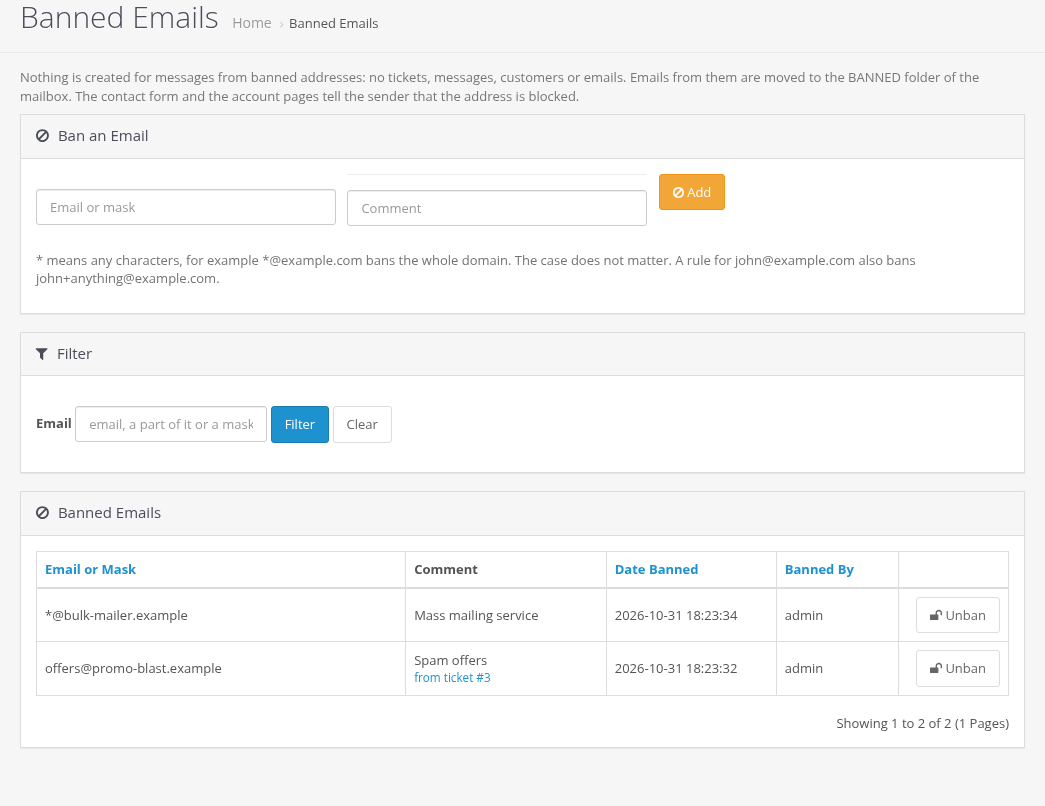
Banned Emails page
- Ban an Email: enter an address or a mask and click Add.
- The list shows the rule, the comment, the date, the administrator who added it and the ticket it was banned from.
- Unban removes the rule. Emails that were moved to the BANNED folder are not imported later; forward them to the support mailbox again if needed.
- Filter finds rules by an address, a part of it or a mask.
Rules and masks
| Rule | Bans |
|---|---|
john@example.com |
This address and also john+anything@example.com. |
*@example.com |
All addresses of the domain. |
sales*@* |
All addresses starting with "sales" in any domain. |
*means any characters. The case does not matter.@example.comis saved as*@example.com.- A rule cannot contain spaces and cannot be longer than 255 characters.
- Rules that would ban all addresses (
*,*@*) are not accepted.
What happens with banned senders
| Channel | Result |
|---|---|
| Email to the support mailbox | Moved to the BANNED folder of the mailbox, nothing is imported. The cron log has a BANNED line with the rule. |
| Address in To or CC of another email | No customer account is created for it and it is not added to the ticket. |
| Contact form | The form is not sent and shows: "Messages from the email address ... are not accepted, the address is blocked by the store administration. Please contact us by other means." |
| My Account > Tickets | The customer cannot create tickets or add messages and sees the same text. |
Banning stops new messages only. The existing tickets, messages and the customer account stay until you delete them.