
A message can contain images inside its text and attached files. Both work in the admin panel, in the customer account and in emails.
Images in the text
Administrators and customers add images to a message in three ways:
- the picture button of the editor (several files at once);
- paste from the clipboard (Ctrl+V), for example a screenshot;
- drag and drop a file into the text.
The upload progress and errors are shown under the editor. The message cannot be sent until all images are uploaded.
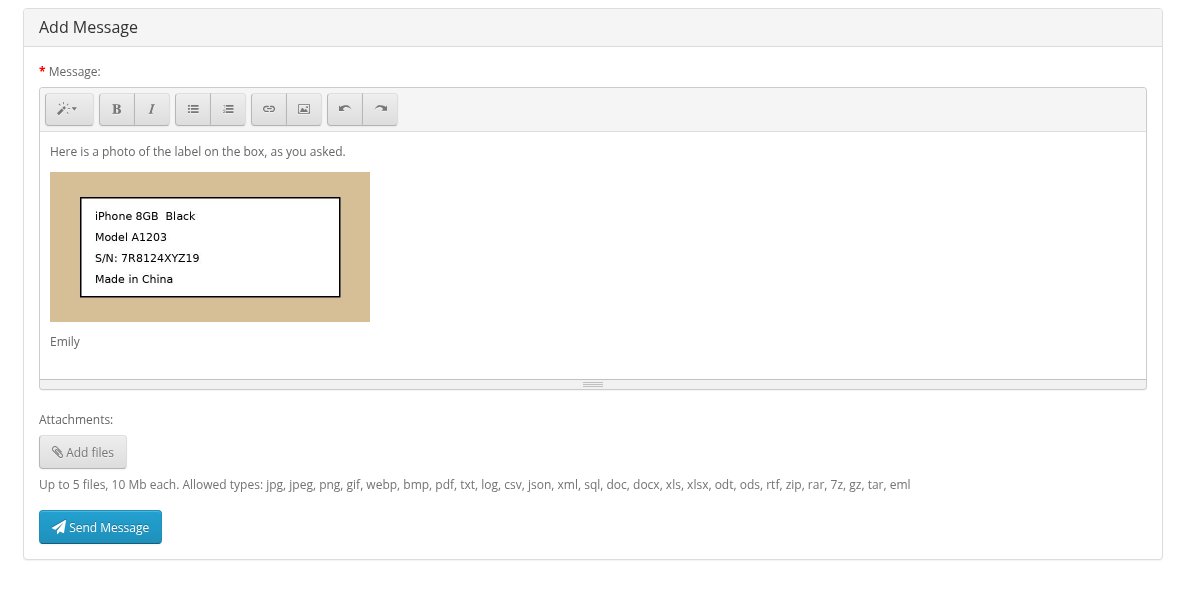
Rules for images:
| Rule | Value |
|---|---|
| Types | JPEG, PNG, GIF and WebP. The type is checked by the file content, not by the name. |
| Images in one message | Maximum Images in a Message, default 10 (1-50). Images inserted by URL are not counted. |
| Size of one image | Maximum Image Size (MB), default 5 (1-50). |
| Dimensions | Up to 40 megapixels. Larger sides are reduced to 2560 px. |
JPEG, PNG and WebP images are saved again on upload: the photo orientation is applied and the EXIF data, including GPS location, is removed. GIF images are stored as they are, so animation is kept. The GD extension of PHP is needed for this.
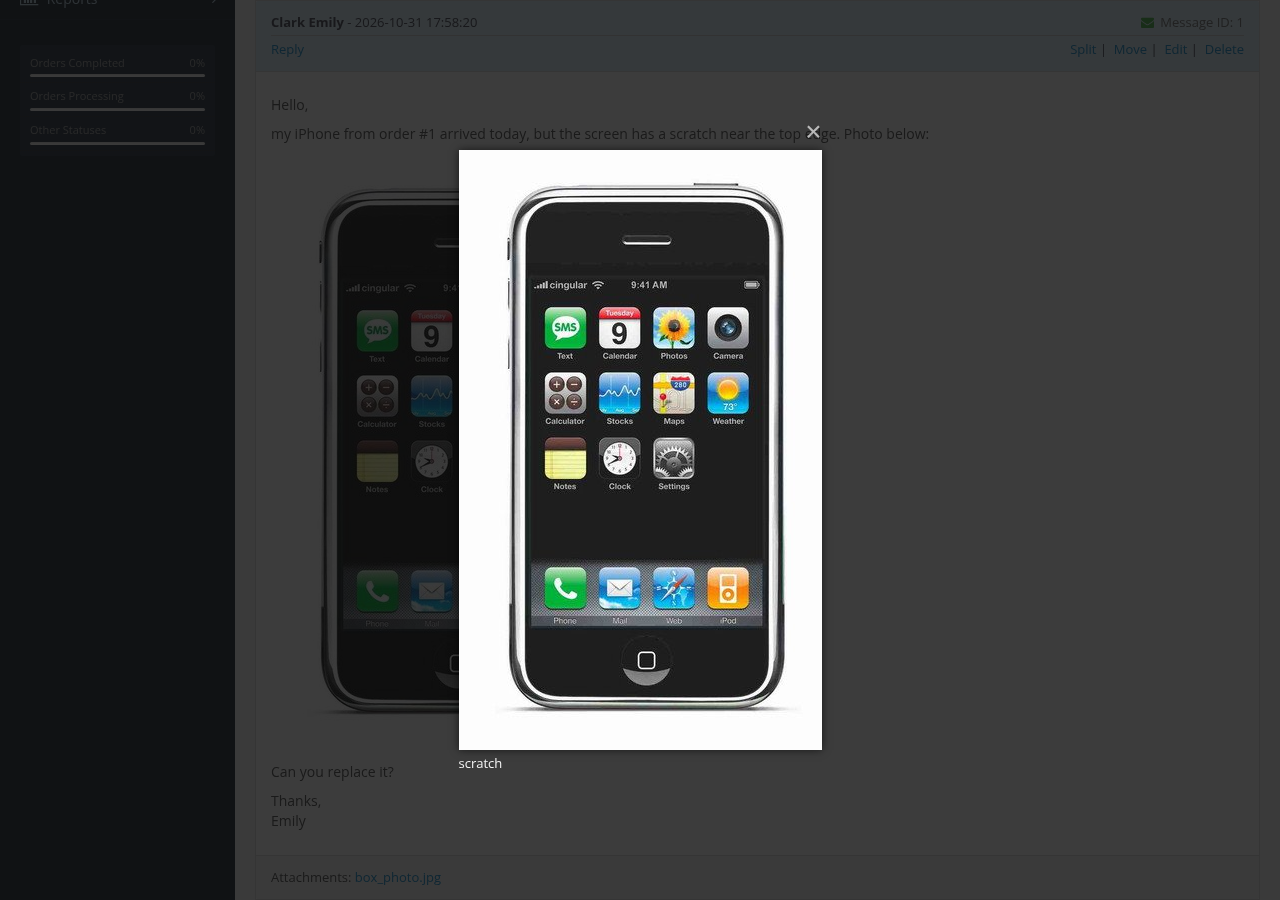
In the ticket pages images are shown up to 600 px wide. Click an image to see it full size.
Images that were uploaded into the editor but never sent are removed by cron after 24 hours.
Attached files
Click Add files under the message to attach files. The hint under the button shows the limits:
| Setting | Default |
|---|---|
| Maximum Attachments in a Message | 5 (0 turns attachments off) |
| Maximum Attachment Size (MB) | 10 (0 means no limit) |
| Allowed Attachment Extensions | jpg, jpeg, png, gif, webp, bmp, pdf, txt, log, csv, json, xml, sql, doc, docx, xls, xlsx, odt, ods, rtf, zip, rar, 7z, gz, tar, eml |
The PHP limits of the server apply too (upload_max_filesize, post_max_size, max_file_uploads); the tooltips of the settings show them. If the files together are larger than post_max_size, the form is not sent and shows an error.
Attached files are listed under the message. Click a name to download the file.
Images and files from emails
- Images pasted into the text of an email become images of the message, with the same checks as uploaded images. The image limit is not applied to emails (at most 50 images of one email are saved). Images that do not pass the checks are saved as attached files.
- Other files of the email become attached files. The attachment limits of the settings are not applied to emails.
- Images of the quoted text and images that the module itself sent in earlier emails are not saved again.
Images and files in notification emails
- Images of the message are put into the email itself (up to 5 MB of images per email, reduced copies). Further images are sent as links. With Ka Extensions older than 4.1.1.30 mail clients show these images as attachments.
- Attached files are sent as links, not as attachments. The customer has to log in to the store to download them.
Who can open the files
Files and images are stored in the ticket_attachments folder inside the OpenCart storage folder, not in a public folder. They are shown by a script of the module:
- administrators with access to the tickets see all files;
- a customer sees the files of his own tickets only, and only after his email is confirmed;
- with Messages For Multivendor, a vendor sees the files of the tickets assigned to him.
Images that a user has uploaded but not sent are visible only to this user.