
Sometimes a customer writes about two problems in one email, replies to an old ticket with a new question, or sends a message with a typo in an order number. The links Split, Move, Edit and Delete under every message on the ticket page help to keep tickets clean.
All four actions need the modify permission for the ticket page (see Permissions and Security). None of them sends emails to customers or administrators.
Edit
Edit opens the message in the editor. Change the text or the images and click Save. The changed text is shown in the admin panel and in the customer account. Emails that were already sent do not change.
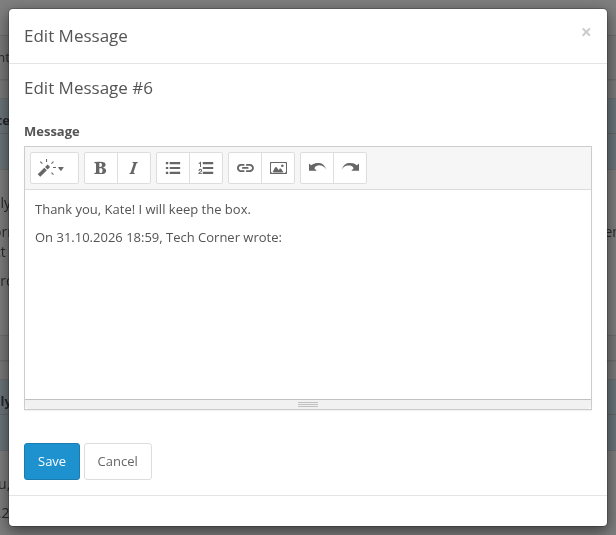
Use it to remove personal data that a customer sent by mistake, for example a card number or a password.
Move
Move takes the whole message, with its images and attached files, out of the current ticket and puts it into another one:
- New Ticket: enter the Subject of the new ticket. The new ticket gets the same customers as the current one, the source Admin and the Default Assigned User.
- Existing Ticket: start typing in Select Ticket and choose the ticket.
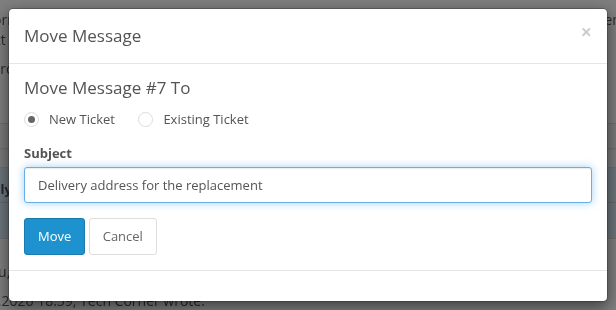
The message keeps its author and date. If you move the only message of a ticket, the old ticket stays empty; delete it in the ticket list.
Split
Split copies a part of a message into another ticket and leaves the original message where it is. Use it when one email contains two different questions.
- Click Split under the message.
- Choose New Ticket and enter the subject, or Existing Ticket and select it.
- In Message leave only the part that belongs to the other ticket.
- Click Split.
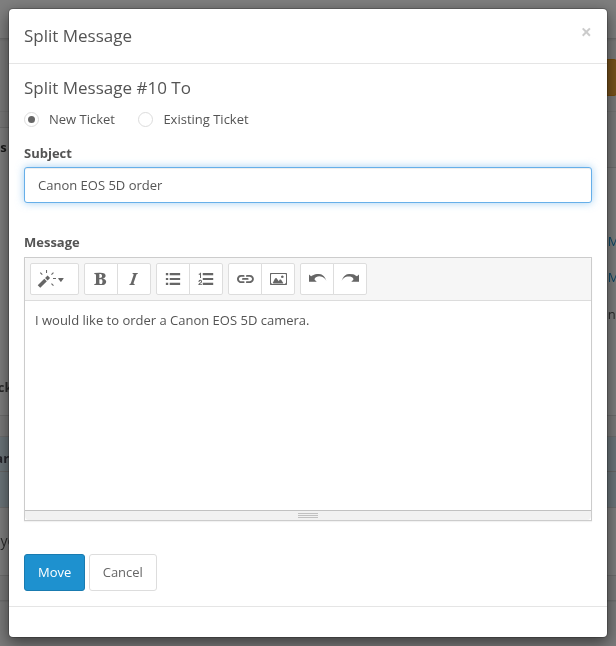
The text is added to the target ticket as a new message written by you, with the images of the original message. It shows a link Source Message ID to the original message, and the original message shows Split to with links to its parts. The customers of the target ticket do not get an email about it; write a reply in that ticket if they should know.
Delete
Delete removes the message with its images and attached files after a confirmation. This cannot be undone. The deletion is written to system/storage/logs/ka_messages.log.
If the customer replies to the email of a deleted message, the reply may not find its ticket and then becomes a new ticket.
To delete whole tickets use the ticket list (see Ticket List).