
Open System > Task Scheduler and click Add. A new task is created in three steps. Saving a task needs the modify permission.
The three steps
- Step 1 of 3. Enter the task name (at least 3 characters), the schedule and other common fields, select the Module and click Save. The task is not saved yet, the form goes to the next step.
- Step 2 of 3. Select the Operation of the module and click Save. Modules with one operation can skip this step.
- Step 3 of 3. Fill in the parameters of the operation (fields marked with * are required) and click Save. The task is saved and you return to the task list.
The Module list shows the tasks available in your store: the bundled ones (see Bundled Tasks) and tasks of other installed Ka modules. Some modules show a readable name in brackets after the file name.
When you edit an existing task, all fields are shown on one page.
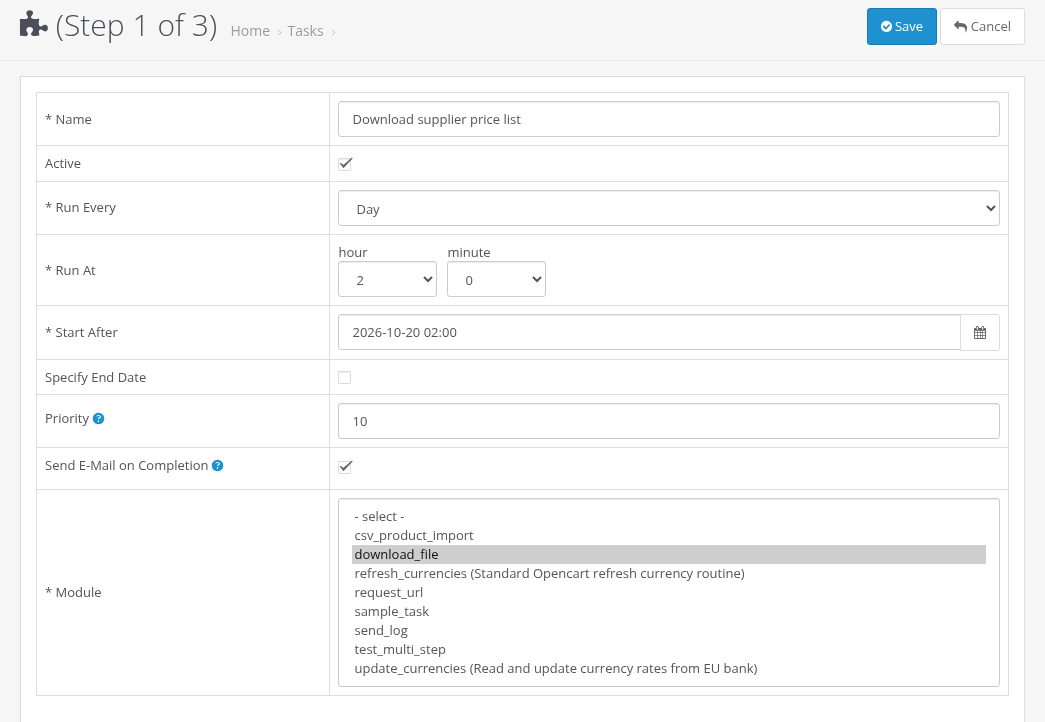
Step 1: name, schedule and module
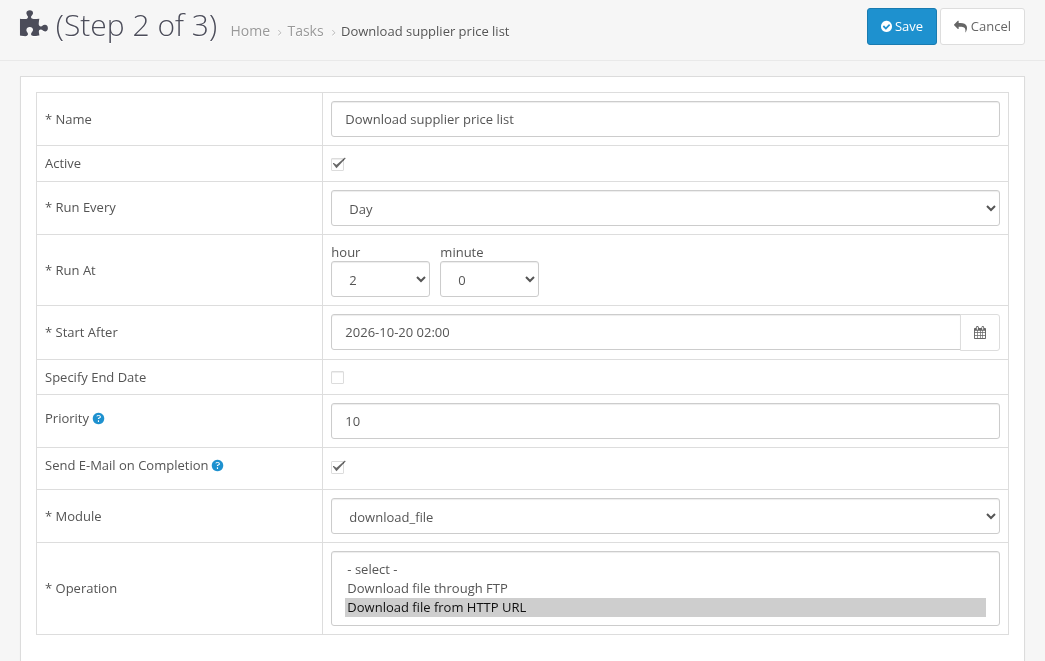
Step 2: operation
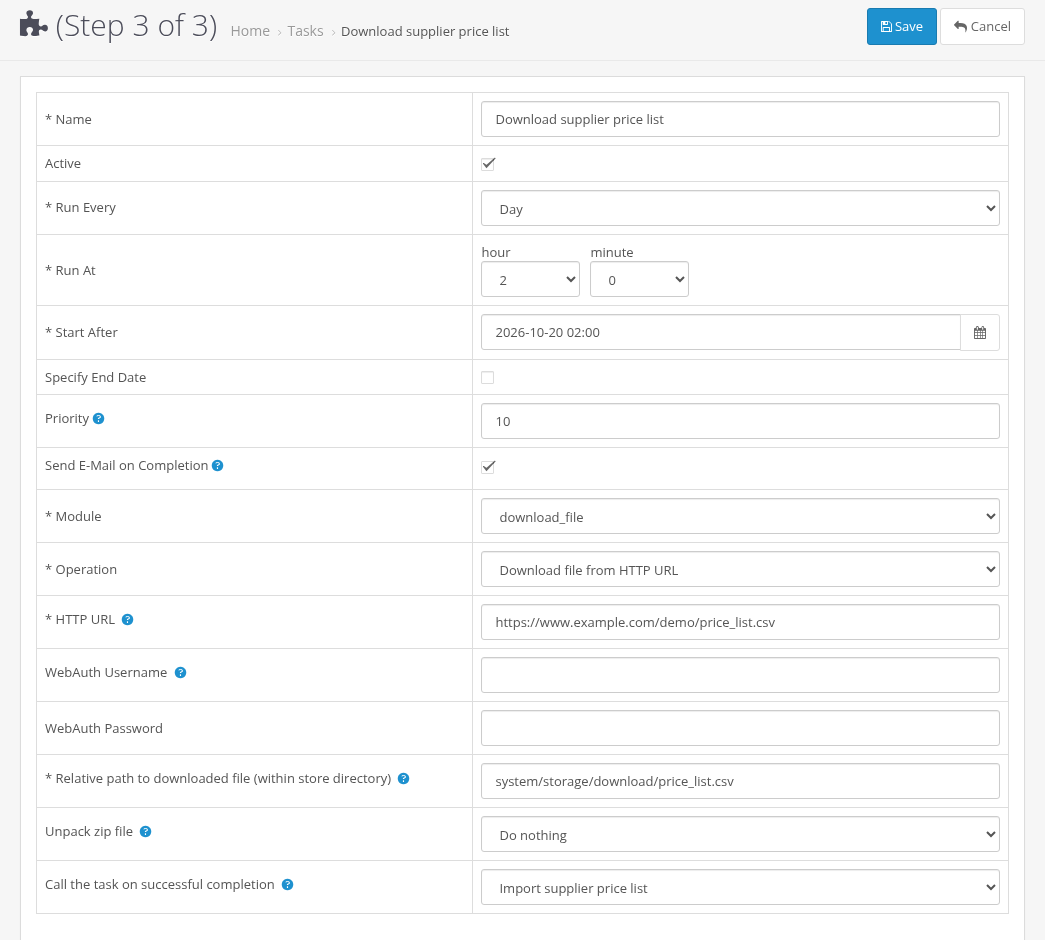
Step 3: operation parameters
Schedule
| Run Every | Run At fields |
|---|---|
| Every N minutes | every N minutes (1-525600) |
| Hour | minute |
| Day | hour, minute |
| Week | day of week, hour, minute |
| Month | day, hour, minute |
| Year | month, day, hour, minute |
How the schedule is calculated:
- First run. A new task runs at its Start After date and time (at the first scheduler call after it), whatever the Run At values are. Later runs follow Run At. To start a daily 03:00 task exactly at 03:00, set Start After to 03:00 of the first day.
- Later runs happen at the schedule points (for example, every day at 03:00), not "last run + period". A late cron call does not shift the schedule.
- Missed runs. If the scheduler was not called for a while, a task that missed several runs runs once, then follows the schedule again.
- Every N minutes counts from Start After: Start After + N, + 2N and so on.
- Days 29-31. In a shorter month the task runs on the last day of the month (day 31: Jan 31, Feb 28 or 29, Apr 30). A yearly task on Feb 29 runs on Feb 28 in other years.
- Daylight saving time. Day, week, month and year schedules use the clock time. A time that does not exist on the spring switch day (02:30) runs right after the gap (03:30). A time repeated in autumn runs once.
- Time zone. On OpenCart 3.0.4.0 and newer, Run At is the store time (the time zone in the store settings). On older OpenCart versions it is the time of the database server.
Other fields
- Active. Only active tasks run by schedule. You can also change it on the task list.
- Start After (required). The task does not run before this date and time. A new task gets today 00:00.
- Specify End Date / End At. New tasks have no end date. If you set one, End At must be later than Start After. After End At the task is not run, but it stays in the list.
- Priority. Used when several tasks are due at the same time. The tooltip explains the order: an unfinished multi-step task is always continued first. Otherwise, the task with the oldest last start runs first (tasks that have never started go before others). Priority is compared only when the last start times are equal: the higher number runs first.
- Send E-Mail on Completion. Sends the completion email for this task. It works only when the global email setting is on, see Settings.
Validation messages
| Message | What to do |
|---|---|
| Name is empty / Name should be not less than 3 characters | Enter a name of 3 or more characters. |
| Module is not selected | Select a module. |
| Operation is not selected | Select an operation (step 2). |
| Required operation parameters are empty | Fill in all fields marked with *. |
| Select the "Run Every" period. | Select a Run Every value. |
| The number of minutes in "Run At" should be from 1 to 525600. | Enter a whole number of minutes in this range. |
| Select all "Run At" values for the selected period. | Select every Run At field shown for the period. |
| The "Start After" date is empty or not valid. | Enter the date as YYYY-MM-DD HH:MM or use the calendar. |
| The "End At" date is not valid or it is not later than "Start After". | Correct End At or clear Specify End Date. |
| Warning: You do not have permission to modify the extension. | Ask an administrator for the modify permission, see Permissions and Security. |