
Open the settings with Extensions > Extensions > Ka Extensions > Task Scheduler > Edit. Saving needs the modify permission for the module.
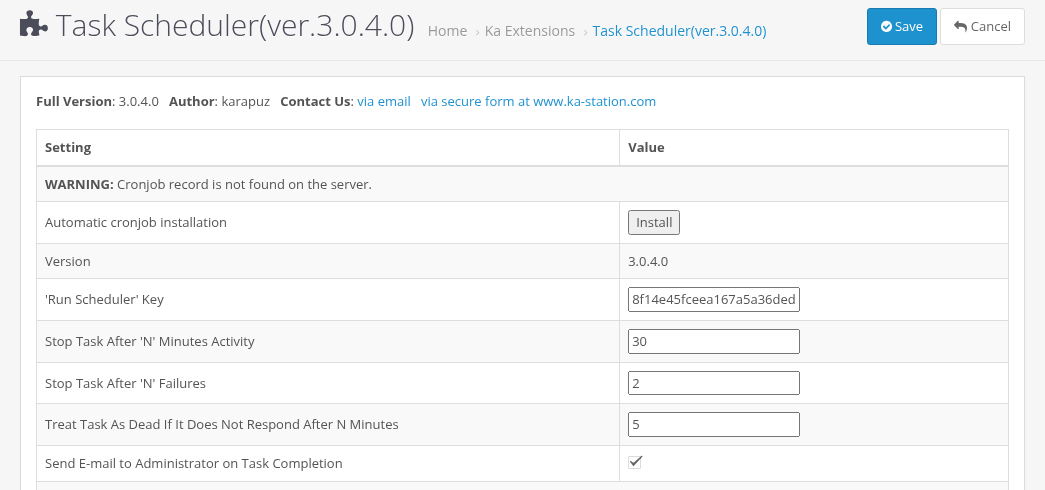
Task Scheduler settings
'Run Scheduler' Key
The key protects the scheduler URL: a request without the correct key is rejected with "Task Scheduler: wrong key."
- A new installation gets a random 32-character key. An upgrade keeps your existing key.
- The key cannot be empty.
- If you change the key, update every cron job or external service that uses the URL. With the automatic cron job, click Re-install on this page.
- Treat the URL with the key like a password. See Permissions and Security.
Time and failure limits
| Setting | Range | Default | Meaning |
|---|---|---|---|
| Stop Task After 'N' Minutes Activity | 1-360 | 30 | Maximum time of one task run, from its first step. A task that is still working after this time is stopped. |
| Stop Task After 'N' Failures | 1-10 | 2 | How many times a task may stop responding. Each time before that the task is continued; the N-th time it is stopped and waits for its next scheduled time (with 1 it is stopped the first time). |
| Treat Task As Dead If It Does Not Respond After N Minutes | 1 to the "Stop Task After" value | 5 | A task whose step runs longer than this is treated as dead. The next scheduler call continues it from the last saved step. |
How it works together:
- A step that does not report back in time (for example, PHP was killed by a server time limit) is "dead". The next call continues the task and counts one failure. When the count reaches 'Stop Task After N Failures', the task is stopped instead.
- The failure counter is reset when the task finishes successfully, so rare failures do not add up over months.
- A stopped task returns to the Idle status. It is not counted as completed and runs again at its next scheduled time.
- Set the dead time longer than the longest normal step of your tasks, otherwise a slow but working step is treated as dead.
Send E-mail to Administrator on Task Completion
When it is on, the store email (System > Settings > Mail, the store E-Mail field) gets a "Task is complete" message with the task name and its results after a task finishes.
- This is the main switch. When it is off, no completion emails are sent, even for tasks with Send E-Mail on Completion checked.
- When it is on, the email is sent only for tasks with Send E-Mail on Completion checked.
- If emails do not arrive, check the store mail settings: How to configure emails in Opencart.