
System > Task Scheduler opens the task list. It shows all tasks, their state and the time of the last scheduler call.
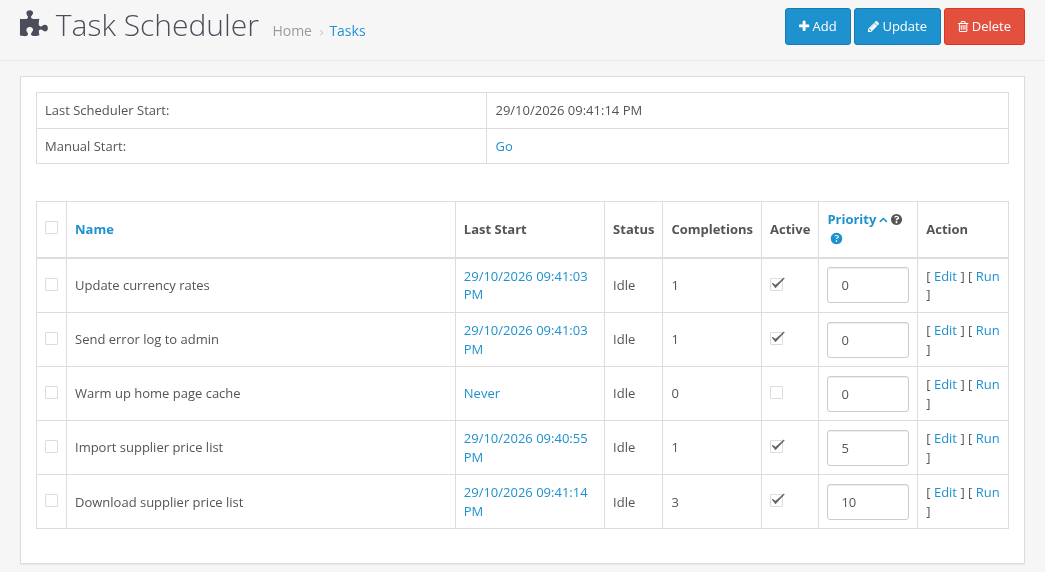
Columns and statuses
| Column | Meaning |
|---|---|
| Name | Task name. The list can be sorted by Name or Priority. |
| Last Start | Start time of the last run, or "Never". Click it to open the task statistics. |
| Status | Idle, Working or In Progress (see below). |
| Completions | How many times the task finished successfully. |
| Active | Only active tasks run by schedule. |
| Priority | See the tooltip next to the column name and Creating and Editing Tasks. |
| Action | Edit (View in Lite), and Run or Stop. |
Statuses:
- Idle: the task waits for its next run.
- Working: a step of the task is running now.
- In Progress: a multi-step task has finished a step and waits for the next one.
Last Scheduler Start at the top shows the last call of the scheduler by cron or by hand. If it is "Never" or old, cron is not working, see Cron Setup.
Changing tasks from the list
- Update saves the Active checkboxes and Priority values of all tasks on the page. Other task fields are not changed.
- Delete deletes the selected tasks. There is no confirmation.
- Edit opens the task form. In Lite it is View: a read-only page of the task.
These actions need the modify permission.
Running tasks by hand
- Manual Start: Go calls the scheduler once in a new browser tab, like a cron call: it runs the next due task, or continues an unfinished one. When it is done, you see "The task scheduler run is complete. See the task status and statistics in the list."
- Run (next to an Idle task) runs this task now, even if it is not due or not active. If another task is running at that moment, nothing is started.
- A multi-step task continues step by step in the browser. Keep the tab open until it finishes.
Manual runs work without the key for users who have access to the module settings. Other users get "Warning: You do not have permission to run the Task Scheduler." See Permissions and Security.
Stopping a task
Stop appears for tasks in the Working or In Progress status. It aborts the task: the task returns to Idle and lets the task module clean up its own data. The task runs again at its next scheduled time. Stop needs the modify permission.
Task statistics
Click the Last Start value of a task to open Task Statistics. It shows the results of the last run reported by the task, for example "Updated currencies: USD, GBP" or "File size". The same values are sent in the completion email.
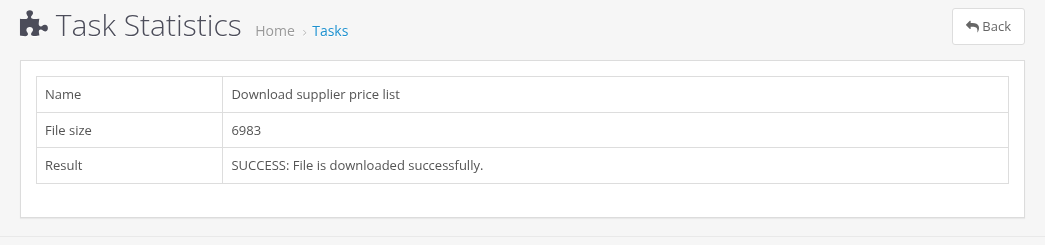
Which task runs first
Each scheduler call runs one task:
- An unfinished task (Working or In Progress) is continued first. While it is working, other tasks wait.
- Otherwise the scheduler takes the active tasks whose Start After has passed and whose End At has not, and picks the first one that is due, in this order: the oldest last start first (never started tasks first), then the higher priority.
- When a task finishes, it may call another task (for example, Download file calls an import task). The called task runs right after it in the same call.
Do not make tasks call each other in a loop (task A calls task B, and B calls A): such tasks run without end.