
Multivendor needs OpenCart 3.0.0.0-3.0.5.x and Ka Extensions 4.1.1.29 or newer. Custom Shipping Methods and Customer Messages are optional. The module is free, no license key or registration is needed.
Requirements
- OpenCart 3.0.0.0-3.0.5.x.
- Ka Extensions 4.1.1.29 or newer. It is a free library required by all our modules.
- Optional: Custom Shipping Methods, if vendors should set their own shipping rates (see Shipping per Vendor).
- Optional: Customer Messages with its Messages for Multivendor extension, if vendors should answer customer tickets (see Customer Messages Integration).
Install the package
- Log in to the store admin and open Extensions > Installer.
- Upload the Multivendor archive (
ka_multivendor_ver1.0.5.0.ocmod.zip). - Upload the latest Ka Extensions library too. If it is already installed, uploading the latest version is still recommended.
- Open Extensions > Modifications and click Refresh.
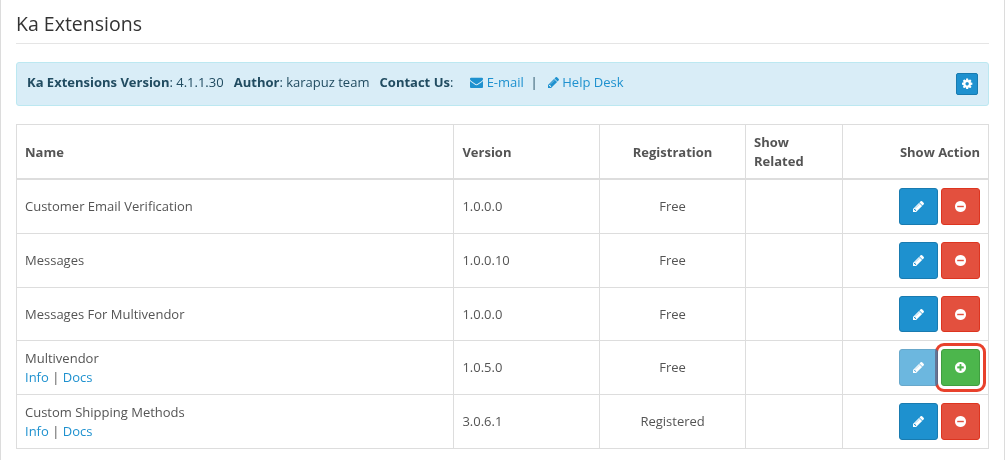
- Open Extensions > Extensions, select Ka Extensions in the type list and click Install next to Multivendor.
- Click Edit next to Multivendor, check the settings and save them (see Settings).
If the installer does not work on your server, see How to Install a Zipped OCMOD Extension Manually. If pages or blocks do not appear after the upload, see How to reset modification cache in Opencart 3.
Install order with optional modules
- Install Custom Shipping Methods before Multivendor. Multivendor is installed after it when both are in the list.
- Install Customer Messages and Multivendor first, then Messages for Multivendor.
You can add an optional module later. Install it, then open the Multivendor settings once and save them.
What the installation adds
- Tables for vendor profiles, vendor descriptions, vendor orders, vendor reviews and category attribute groups.
- Fields for the product owner and the approval status of products, the "Allow for vendor" flag of categories, the vendor of order products and the vendor order of history records.
- Admin pages: Catalog > Vendor Reviews, the Vendor tab in the customer form, vendor filters and approval buttons in the product list, vendor orders in the order info page.
- Storefront pages: vendor registration, the vendor area in My Account, the vendor list and vendor pages.
- Changes to OpenCart files through a modification (OCMOD), so Extensions > Modifications > Refresh is required after the upload.
Opening the Multivendor settings page finishes the setup: it adds missing tables and fields and gives your user group access to the new admin pages. Open it once after each installation or upgrade, with a user that has the modify permission for the module.
Theme notes
The module changes the templates of the default theme: the product page (vendor name), the header (Register Vendor link), My Account (vendor menu), the customer order page (vendor orders), and the shipping estimate in the cart. Its own pages (vendor area, vendor pages, cart and checkout shipping per vendor) use templates of the default theme.
If your store uses another theme, these places may need the same changes in your theme templates. See Adapting a theme.
Uninstall
Uninstall on the Ka Extensions page turns the module off. Vendor profiles, vendor orders, reviews and the added fields stay in the database, so a later Install continues with the existing data.