
With Customer Messages and Messages for Multivendor, administrators assign tickets to vendors, and vendors answer buyers from their account.
What the integration adds and installation order
Customer Messages is our separate ticket module for OpenCart 3. Its package includes the extension Messages For Multivendor, which connects tickets with vendors:
- the administrator can assign a ticket to a vendor;
- vendors get a Tickets item in My Vendor Account, answer the tickets assigned to them and start new tickets with their buyers;
- vendors get emails about their tickets.
Install Customer Messages and Multivendor first, then click Install next to Messages For Multivendor in Extensions > Extensions > Ka Extensions. This page describes only the vendor part; see the Customer Messages documentation for tickets in general and its page Multivendor Integration.
Assigning a ticket to a vendor (admin)
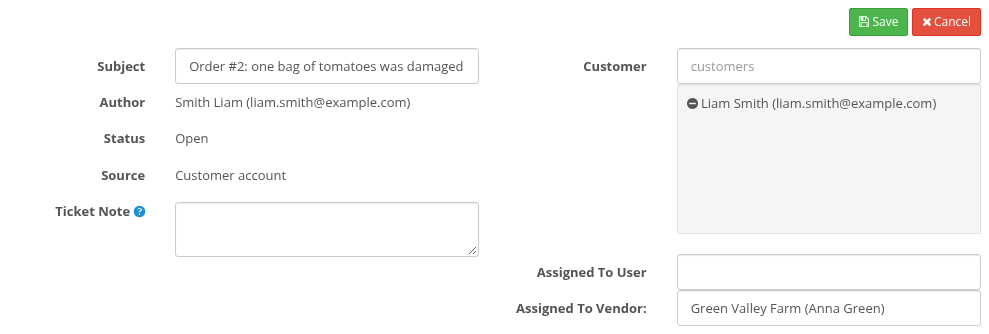
Open a ticket in the admin. The ticket properties have the field Assigned To Vendor ("no one" by default). Edit the properties, choose a vendor and save.
The vendor gets the email "Ticket #N Was Assigned to You" with the last message. From now on the vendor sees the ticket and its messages, and the customer sees the vendor's replies in the ticket as usual.
Vendor tickets
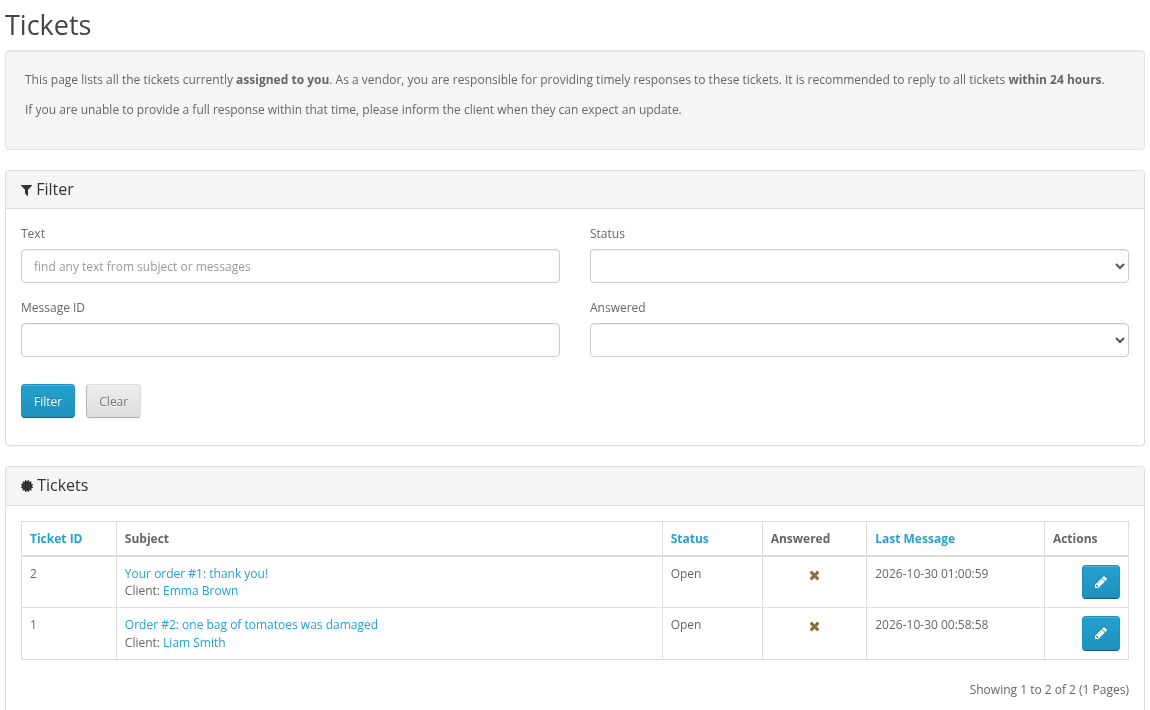
My Account > My Vendor Account > Tickets lists the tickets assigned to the vendor.
- Filters: Status, Text ("find any text from subject or messages"), Answered, Message ID.
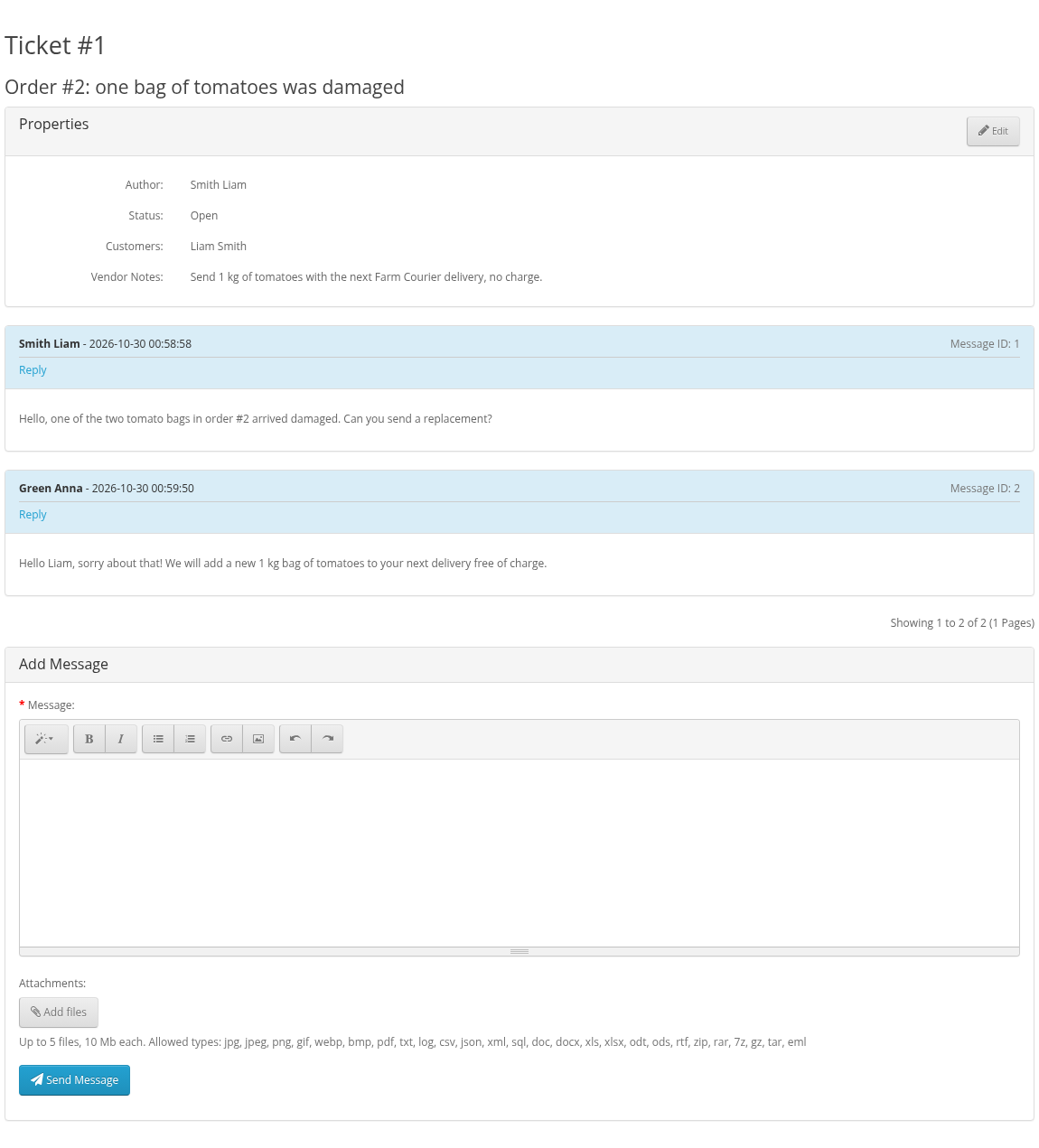
- The ticket page "Ticket #N" shows the messages. The vendor writes a reply in the editor, can add attachments and images inside the text, and clicks Send Message.
- Properties show the author, the status and the customers of the ticket, and Vendor Notes: a text field for the vendor's own notes. Vendor Notes are private: neither the customer nor the administrator sees them.
A vendor sees attachments and images only of tickets assigned to him.
Starting a ticket with a buyer
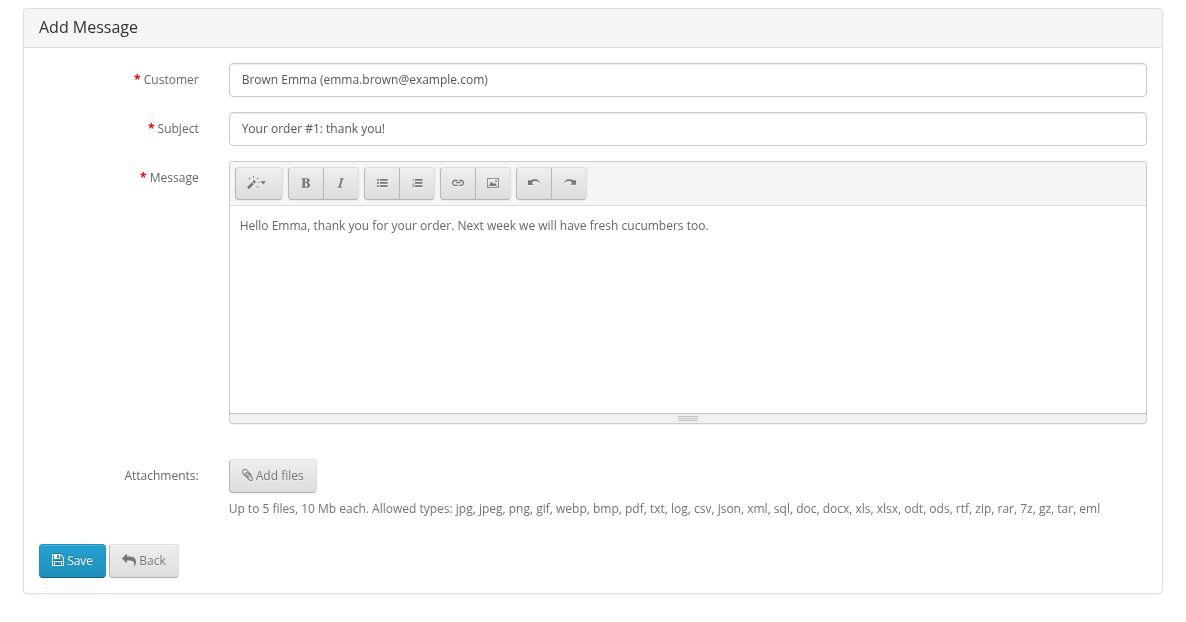
Add in the vendor ticket list opens the new ticket form with Customer, Subject and Message; Save creates the ticket ("The ticket was created successfully").
The Customer field finds customers by email, first name or last name (from the beginning). It lists only registered customers who have at least one order with the vendor's products. Guests cannot be chosen. The order status is not checked, so customers with unfinished orders are listed too.
The new ticket is assigned to the vendor.
What vendors cannot do
- Vendors cannot close tickets. The administrator closes them in the admin.
- Vendors cannot see tickets that are not assigned to them, and cannot assign tickets to other vendors or users.
- Vendors cannot start tickets with customers who have never ordered their products.
Emails to vendors
| When | |
|---|---|
| "Ticket #N Was Assigned to You" | the administrator assigns the ticket to the vendor |
| New ticket notice ("a new support ticket #N has been created by ...") | the administrator creates a ticket assigned to the vendor |
| The new message | a customer or the administrator adds a message to a ticket assigned to the vendor |
Messages added by the vendor are sent to the customer as usual.