
If your store runs our Multivendor extension, tickets can be passed to vendors: the administrator assigns a ticket to a vendor, and the vendor answers the customer from his vendor account.
Installation
The Messages For Multivendor extension is included in the Customer Messages package.
- Install and set up Customer Messages and Multivendor.
- Open Extensions > Extensions > Ka Extensions and click Install next to Messages For Multivendor.
What it adds
- Assigned To Vendor in the ticket properties in the admin panel ("no one" by default).
- Tickets in My Account > My Vendor Account: the vendor sees the tickets assigned to him, answers them, keeps private Vendor Notes and can start a ticket with a customer who has ordered his products.
- Emails to the vendor: when a ticket is assigned to him, and about new messages in his tickets.
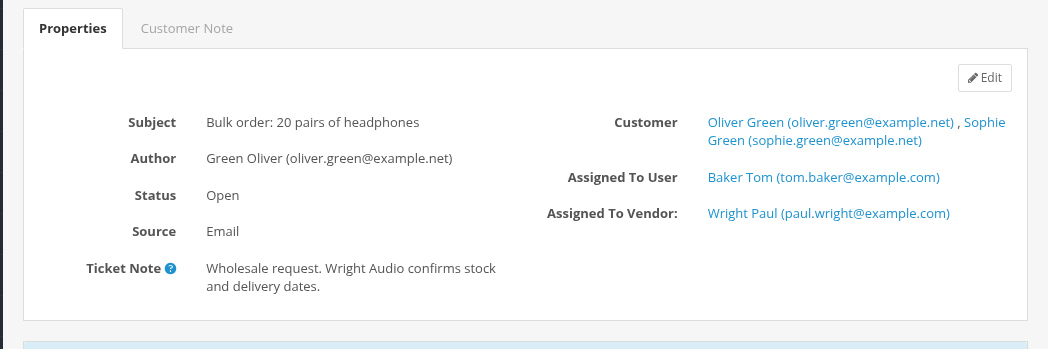
Assigning a ticket to a vendor
- Open the ticket and click Edit in Properties.
- Choose the vendor in Assigned To Vendor and click Save.
The vendor gets the email "Ticket #N Was Assigned to You" with the last message. It is sent once, when the vendor is chosen; saving the properties again with the same vendor sends nothing. The ticket stays assigned to its administrator too: the administrator still gets emails about customer messages and can answer in the admin panel. Messages of the vendor are shown in the ticket with his vendor name, and the customer gets them by email as usual.
Limits
- Vendors see only the tickets assigned to them.
- Vendors cannot close tickets; the administrator closes them.
- Vendors answer on the ticket page of their vendor account.
- A vendor can also reply to a ticket email. Emails coming to the support mailbox are divided only into replies of administrators and all other replies, so the reply of a vendor is added like a reply of any other participant: from the customer account with his email (the account is created automatically when needed).
The vendor part is described in detail in the Multivendor documentation: Customer Messages Integration.