
The module settings are on Extensions > Extensions > Ka Extensions > Messages > Edit. Two store settings in System > Settings matter too. Fill in all of them before you set up cron.
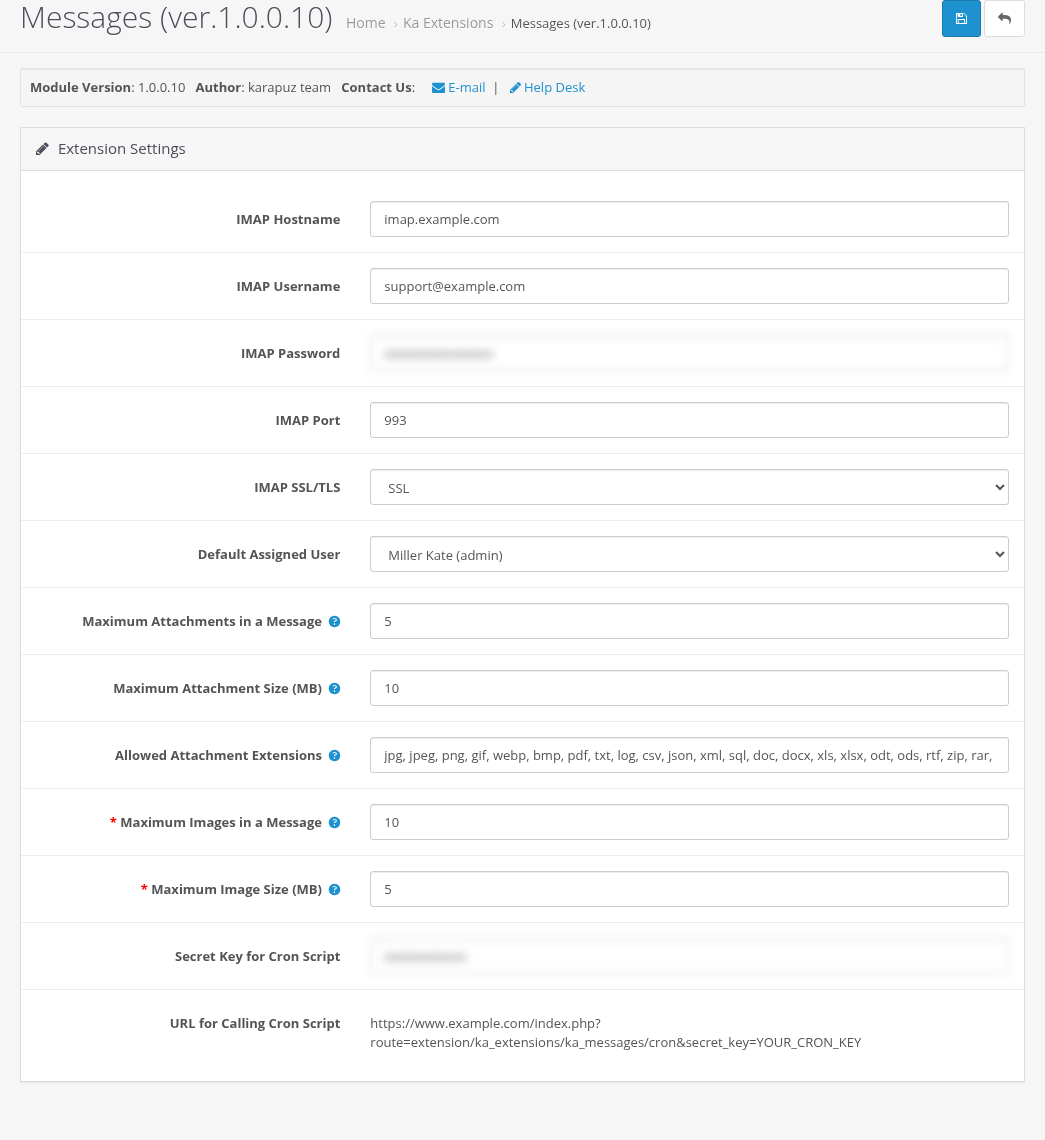
Mailbox (IMAP)
The module reads incoming emails from the mailbox of the store email. How to choose and fill these values is described on Connecting the Mailbox and Setting Up Cron.
| Setting | Default | Description |
|---|---|---|
| IMAP Hostname | empty | The IMAP server of your mailbox, for example imap.example.com. |
| IMAP Username | empty | The login of the mailbox, usually the full email address. |
| IMAP Password | empty | The password of the mailbox (for Gmail and Outlook an app password, see page 4). |
| IMAP Port | 993 | 993 for SSL, 143 for connections without encryption. |
| IMAP SSL/TLS | SSL | SSL: encrypted connection (recommended). No TLS: plain connection, only for local servers. No Certificate Validation: SSL without checking the certificate, for servers with a self-signed certificate. |
Tickets
| Setting | Default | Description |
|---|---|---|
| Default Assigned User | empty | The administrator who gets every new ticket and its emails. We recommend to fill it in: if it is empty, new tickets stay without an assigned administrator and no administrator gets an email about them (they are still listed in Customers > Tickets). Only enabled admin users are listed. |
Attachments and images
| Setting | Default | Description |
|---|---|---|
| Maximum Attachments in a Message | 5 | How many files can be attached to one message in the ticket forms. 0 turns attachments off. Emails from the mailbox are not limited. |
| Maximum Attachment Size (MB) | 10 | Maximum size of one attached file. 0 means no limit. |
| Allowed Attachment Extensions | jpg, jpeg, png, gif, webp, bmp, pdf, txt, log, csv, json, xml, sql, doc, docx, xls, xlsx, odt, ods, rtf, zip, rar, 7z, gz, tar, eml | File extensions separated by commas. Leave the field empty to allow any extension. |
| Maximum Images in a Message | 10 | How many images can be inserted into the text of one message, from 1 to 50. Images inserted by URL are not counted. |
| Maximum Image Size (MB) | 5 | Maximum size of one inserted image, from 1 to 50. |
The tooltips of these fields show the PHP limits of your server (upload_max_filesize, post_max_size, max_file_uploads). The module limits cannot be greater than the server limits; ask your hosting to raise them if needed. More details: Attachments and Inline Images.
Cron
| Setting | Default | Description |
|---|---|---|
| Secret Key for Cron Script | random | A key that protects the cron URL from strangers. You can change it; save the settings and update your cron job then. |
| URL for Calling Cron Script | (read-only) | The URL to call from cron. It is built from your store URL and the key. |
See Connecting the Mailbox and Setting Up Cron.
Store settings: System E-Mail and Admin E-Mail
Open System > Settings, edit the store and go to the Store tab. The module renames the field E-Mail to System E-Mail and adds Admin E-Mail:
| Setting | Description |
|---|---|
| System E-Mail | The support address. Customers write to it, and all ticket emails are sent from it. It must be the mailbox from the IMAP settings. The module never sends emails to this address to avoid loops. |
| Admin E-Mail | Your own address for the usual OpenCart alerts: new orders, new customers and affiliates, new product reviews. With this field filled in, these alerts are not sent to System E-Mail, so they do not get mixed with the support emails. |

Fill in Admin E-Mail right after the installation. While it is empty, the alerts go to System E-Mail, as in OpenCart without the module. The cron does not create tickets from them (they are sent from the store address), but you have to look for them in the support mailbox.
The addresses in Additional Alert Mail on the Mail tab still get the alerts as before. Outgoing mail (SMTP) is set up on the Mail tab as usual, see How to configure emails in Opencart.
Admin users
Every administrator who works with tickets needs:
- a real email in System > Users > Users: ticket emails go to this address. It must differ from System E-Mail;
- a user group with permissions to the module pages (see Permissions and Security).