
Customer Messages works with one support mailbox. Customers write to it, the module reads new emails from it over IMAP, and all ticket emails are sent from it. A cron job starts the reading every 5 minutes.
Choose the support mailbox
Use a separate mailbox for support, for example support@your-domain. The module moves every email out of the inbox of this mailbox after reading it, so do not use a mailbox that you also read in a mail client for other purposes.
- Create the mailbox at your mail provider and make sure IMAP access is enabled.
- Open System > Settings, edit the store, and on the Store tab enter this address in System E-Mail. Enter your own address in Admin E-Mail (see Settings).
- On the Mail tab set up outgoing mail so that emails are sent from this mailbox. SMTP with the login of this mailbox is the most reliable choice; see How to configure emails in Opencart.
- Open the Messages settings and fill in the IMAP fields with the data of the same mailbox.
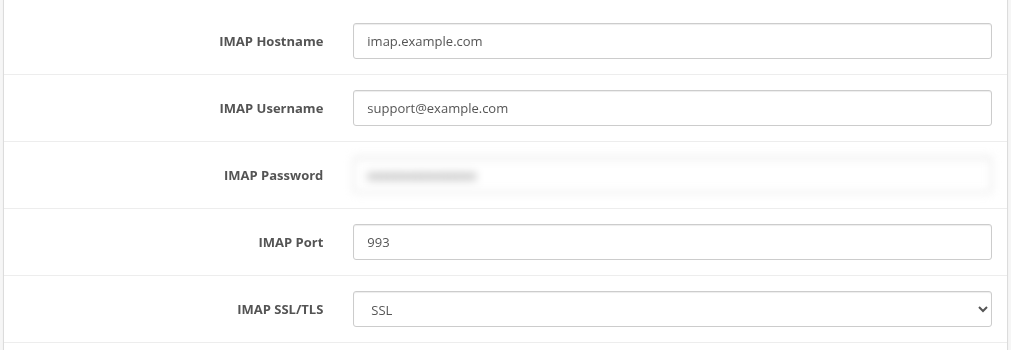
IMAP settings
The values are given by your mail provider; look for "IMAP settings" in its help.
| Setting | Typical value |
|---|---|
| IMAP Hostname | imap.your-provider.com |
| IMAP Username | the full email address |
| IMAP Password | the mailbox password or an app password |
| IMAP Port | 993 |
| IMAP SSL/TLS | SSL |
Notes for popular providers:
- Gmail / Google Workspace: hostname
imap.gmail.com, port 993, SSL. Turn on 2-Step Verification for the account and create an app password (Google Account > Security > App passwords); use it as the IMAP password. The usual account password does not work. The folders of the module appear in Gmail as labels. - Outlook.com / Microsoft 365: these mailboxes accept IMAP logins only with OAuth2 (Modern Authentication), not with a password. The module signs in with a login and password, so it cannot read such mailboxes. Use a mailbox at your hosting or at another provider.
- Mailbox at your hosting: the hostname is usually
mail.your-domainor the server name from the hosting panel. Choose No Certificate Validation only if the server has a self-signed certificate.
The password is stored in the store settings in plain text, like the SMTP password of OpenCart.
Folders in the mailbox
On the first run the module creates these folders in the mailbox and moves every processed email to one of them:
| Folder | What goes there |
|---|---|
| PROCESSED | Emails added to tickets. |
| SKIPPED | Emails that were not imported: bounces, delivery reports, auto-replies, emails without a valid sender, emails that could not be processed. |
| BANNED | Emails from banned senders (see Banned Emails). |
The emails are not deleted, so you can always find the original in these folders. Clean them up from time to time if your mailbox has a size limit.
Cron
The module reads the mailbox only when its cron URL is opened. The URL is shown in the module settings in URL for Calling Cron Script:
https://www.example.com/index.php?route=extension/ka_extensions/ka_messages/cron&secret_key=YOUR_CRON_KEY

Copy the URL from the settings and add a cron job that opens it every 5 minutes. Add it yourself in the hosting panel (Cron Jobs or Scheduler) or with crontab -e on your server:
*/5 * * * * curl -s -m 120 "https://www.example.com/index.php?route=extension/ka_extensions/ka_messages/cron&secret_key=YOUR_CRON_KEY" > /dev/null
If the server has wget and no curl:
*/5 * * * * wget -q -O /dev/null "https://www.example.com/index.php?route=extension/ka_extensions/ka_messages/cron&secret_key=YOUR_CRON_KEY"
Keep the quotes: the URL contains &. If you use our Task Scheduler extension, you can call the same URL from a Request page URL task instead.
Each run:
- Reads new emails from the inbox and adds them to tickets (see How Emails Become Tickets).
- Sends the ticket emails that failed before (up to 5 attempts with growing pauses).
- Once an hour removes images that were uploaded into the editor but never sent (older than 24 hours).
The URL shows nothing when everything is fine. A wrong key shows secret_key is not valid.
Checking that it works
- Send an email from your personal address to System E-Mail.
- Wait for the next cron run, or open the cron URL in the browser.
- Open Customers > Tickets: the email is now a ticket. The email itself is in the PROCESSED folder of the mailbox.
The cron log is in system/storage/logs/ka_messages.cron.log: every run writes STARTED and FINISHED lines, one line for every email (PROCESSED, SKIPPED or BANNED) and the number of sent and not sent emails. Connection errors to the mailbox are written to the OpenCart error log (System > Maintenance > Error Logs). See also Troubleshooting and FAQ.
Keep the key private
Anybody who knows the cron URL can start the import, so do not publish it. To change the key, enter a new Secret Key for Cron Script, save the settings and update your cron job.