
Visitors and customers apply for a vendor account in the storefront. The administrator approves or declines applications, or vendors are enabled at once when approval is off.
Two ways to apply
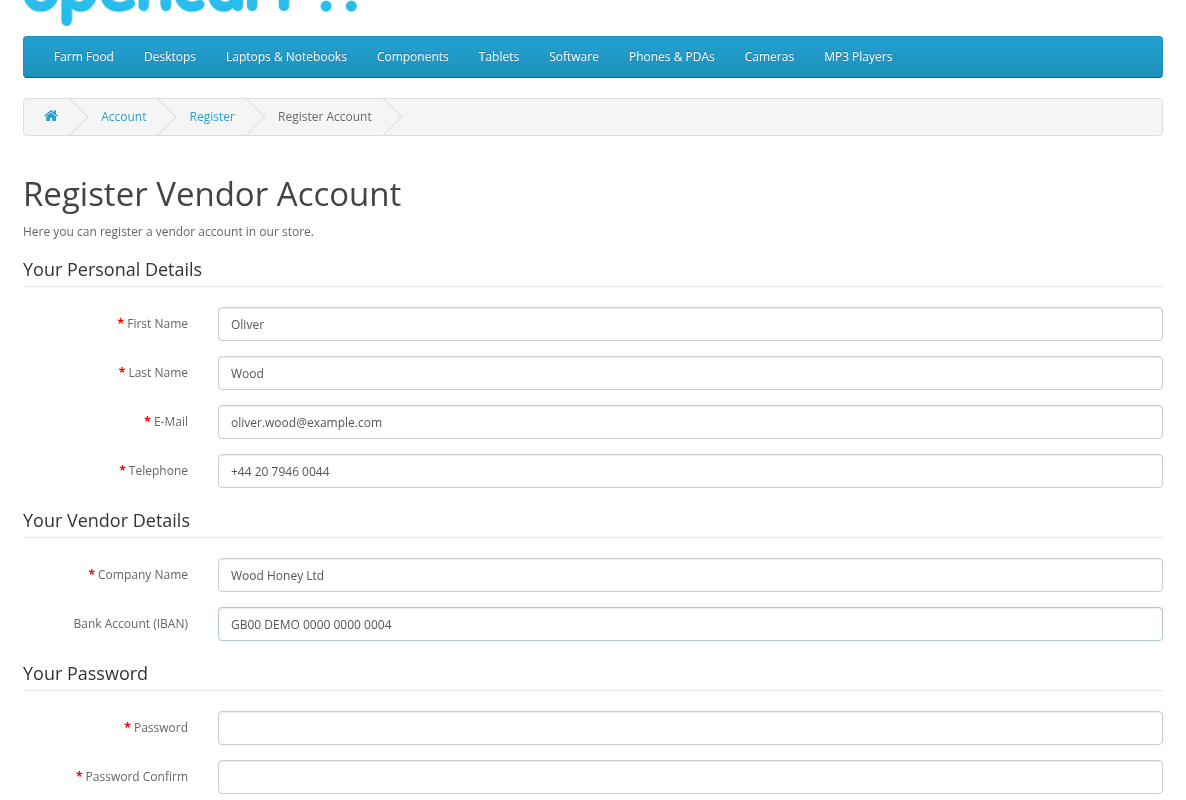
A new visitor opens the Register Vendor link. In the default theme it is in the My Account menu of the header, next to Register. The form "Register Vendor Account" has:
- Your Personal Details: First Name, Last Name, E-Mail, Telephone and your custom fields with the Account location;
- Your Vendor Details: custom fields with the Vendor Account location (see Vendor fields);
- Password and Password Confirm, Newsletter;
- the captcha, if it is enabled for the Register page, and the privacy policy checkbox, if the store has one.
The form creates a customer account and a vendor profile at once, and logs the visitor in.
An existing customer logs in and opens My Account. The My Vendor Account block has the link Register vendor account. The same form shows only the vendor fields.
What the applicant sees
- After sending the form: "Congratulations! Your new account has been successfully created! We will review your application and send an email with the results to you within 72 hours."
- While the application waits: My Vendor Account shows "Waiting for Approval".
- After a decline, or when you disable the vendor: "Vendor account is inactive".
- After approval: the vendor menu (see Getting Started and Your Profile).
The store email (System > Settings > Mail) gets "A new vendor registration" for each application.
Approving and declining
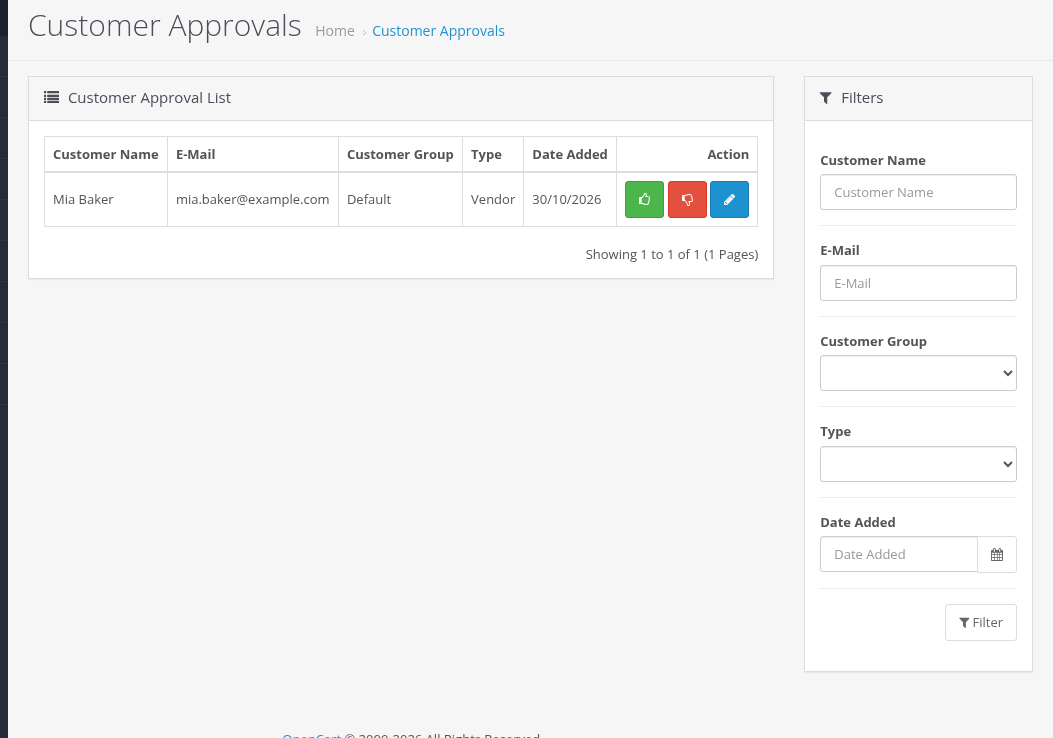
With Require vendor profile approval on, applications appear in Customers > Customer Approvals with the type Vendor. The Type filter of that page has only Customer and Affiliate, so leave it empty to see vendor applications.
If the customer group also requires the OpenCart customer approval, the list has two rows for the new account, Customer and Vendor. Approve both: until the Customer row is approved the account cannot log in ("Warning: Your account requires approval before you can login.").
- Approve enables the vendor profile. The vendor gets the email "Vendor Account Approved". The customer history gets "The vendor profile was approved by admin (id:N)".
- Deny disables the vendor profile. The vendor gets the email "Vendor Account Declined" and the customer history gets a record.
You can also approve a vendor in the customer form: set Vendor Status to Enabled in the Vendor tab and save. While a vendor waits, the tab shows "The vendor is awaiting for approval on the customer approvals page".
The customer account itself follows the usual OpenCart rules: if your customer group requires approval of new customers, the account is approved separately.
Registration without approval, or closed
- Require vendor profile approval off: a new vendor is enabled at once and can add products. The store email still gets "A new vendor registration".
- Allow vendors to register in store off: the registration pages show "page not found". The Register Vendor link in the header and Register vendor account in My Account are still shown, so remove them from your theme if you close registration.
Creating a vendor profile from the admin
- Open Customers > Customers and edit (or add) a customer.
- Open the Vendor tab and check Register Vendor Profile.
- Fill in Vendor Status, limits, vendor fields and the Public Profile (at least the name).
- Save.
A profile created this way does not go through approval and no email is sent. See Managing Vendors.