
Vendors are customers with a vendor profile, so you manage them in Customers > Customers: find vendors in the customer list, change the vendor status, product limit and commission, edit the public profile and the API key.
Finding vendors
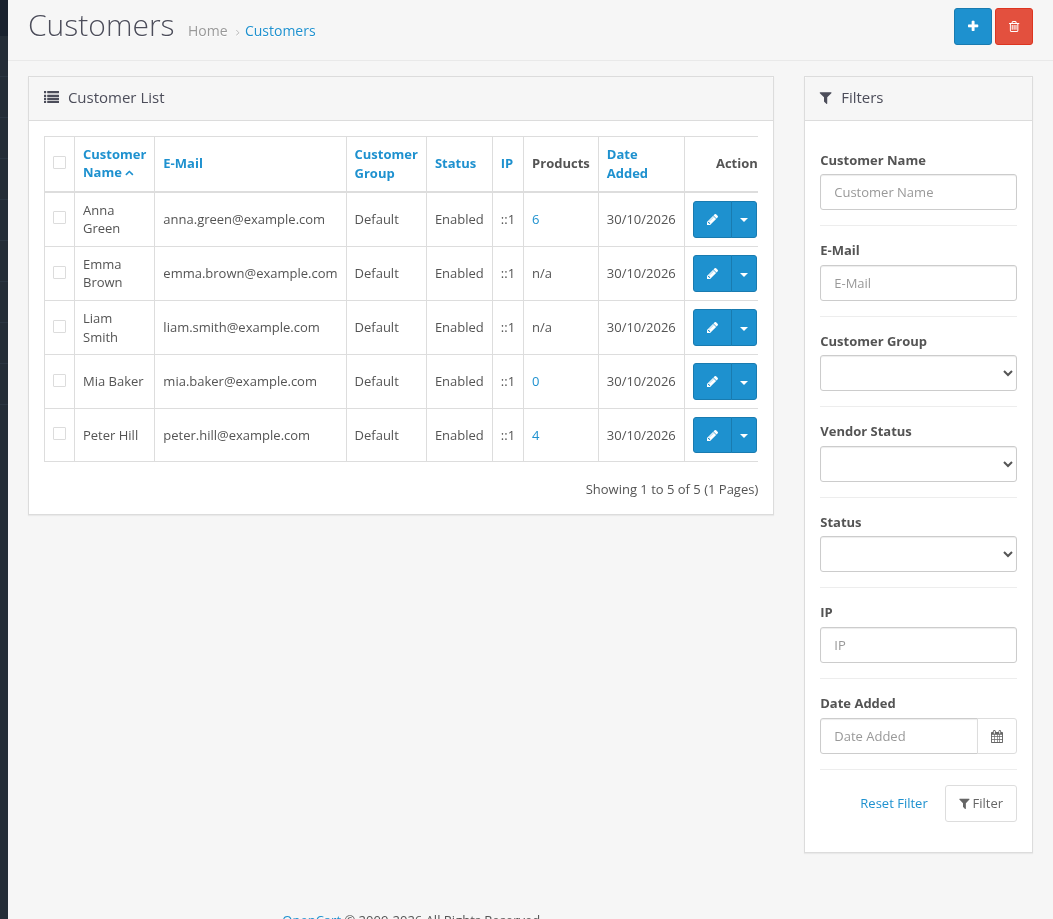
The customer list has:
- the Vendor Status filter: Not Registered, Disabled, Enabled;
- the Products column with the number of the vendor's products (a link to the product list filtered by this vendor), or "n/a" for customers who are not vendors;
- View Products in the action menu of a vendor.
The Vendor tab
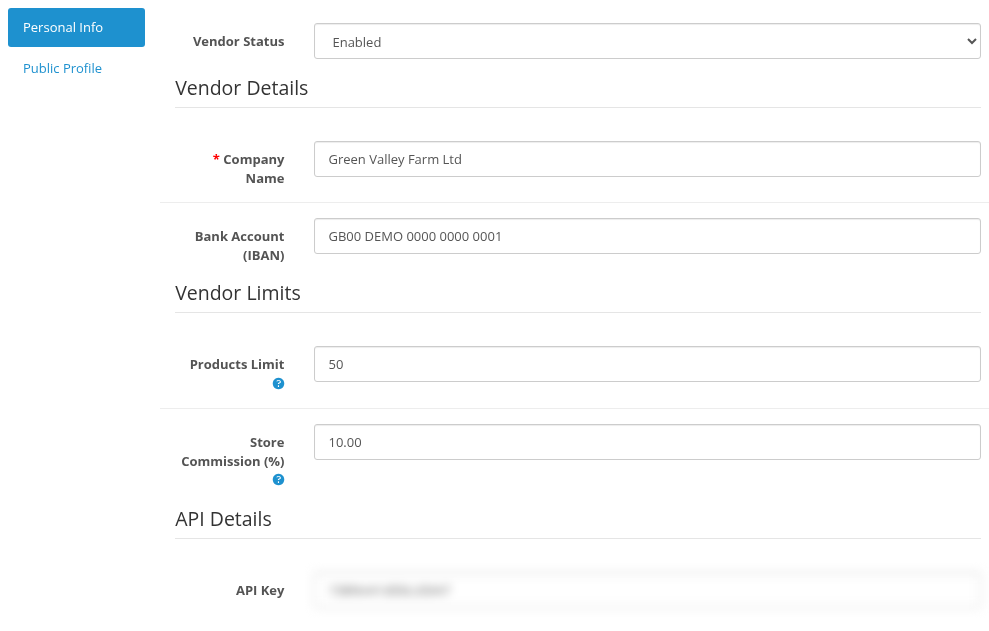
Edit a customer and open the Vendor tab. It has two parts: Personal Info and Public Profile.
For a customer without a vendor profile the tab has only the Register Vendor Profile checkbox. Check it to show the vendor fields, fill in the required vendor fields and the public Name, and save the customer. The profile gets the default products limit and commission from the settings and the status Disabled; set Vendor Status to Enabled to let the vendor sell.
Personal Info:
| Field | Meaning |
|---|---|
| Vendor Status | Enabled or Disabled. Only enabled vendors can sell. |
| Products Limit | A number of products available for the vendor. The default comes from the settings. |
| Store Commission (%) | This commission is deducted from vendor sales. It is fixed in each vendor order when the order is placed, so a change applies to new orders only. |
| API Key | The key of the Product API. Clear it to block API access; the vendor can generate a new key in the profile. |
| Vendor fields | Custom fields with the Vendor Account location. |
Changes of the vendor status are recorded in the customer history: "Vendor profile was added / enabled / disabled by ...".
Public profile
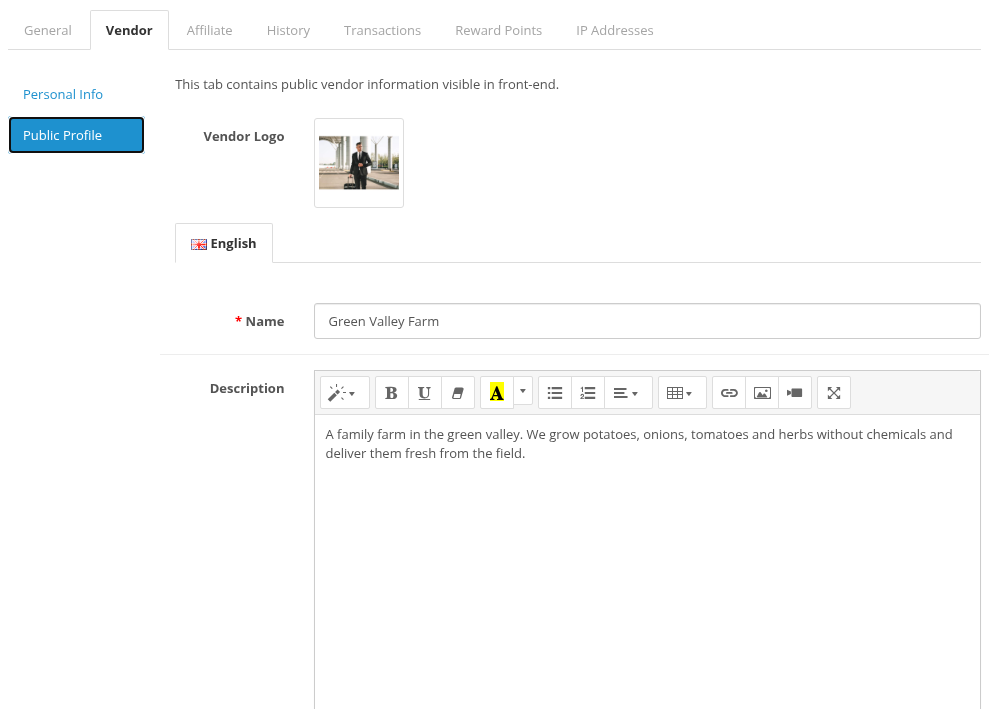
Public Profile has the information shown to buyers:
- Vendor Logo;
- Name (required) and Description for each language.
Fill in the name in every language of the store. A vendor without a name in the current language is not shown in vendor lists.
Disabling a vendor
A vendor becomes inactive when:
- you set Vendor Status to Disabled;
- you deny the application on Customer Approvals;
- you disable the customer account (Status of the customer).
All products of an inactive vendor are disabled. They are not enabled again automatically when you enable the vendor; enable them in Catalog > Products (the vendor can enable approved products too). Inactive vendors are hidden from the vendor list, and their API requests are rejected.
Deleting a vendor
Deleting the customer deletes the vendor profile and the public profile. The vendor's products are not deleted: they are disabled and stay in your catalog for the order history. Reassign them to another vendor or to the store with the Vendor field of the product, or delete them.
Old orders keep their vendor orders; the admin order page shows "- Deleted -" instead of the vendor name.