
For vendors: find your orders, read order details and commission, change the delivery status and notify the customer. Open My Account > My Vendor Account > Sales (the page "Vendor Orders").
You see only your part of each order: your products and your shipping. Products of other vendors and of the store in the same order are not shown.
Sales list
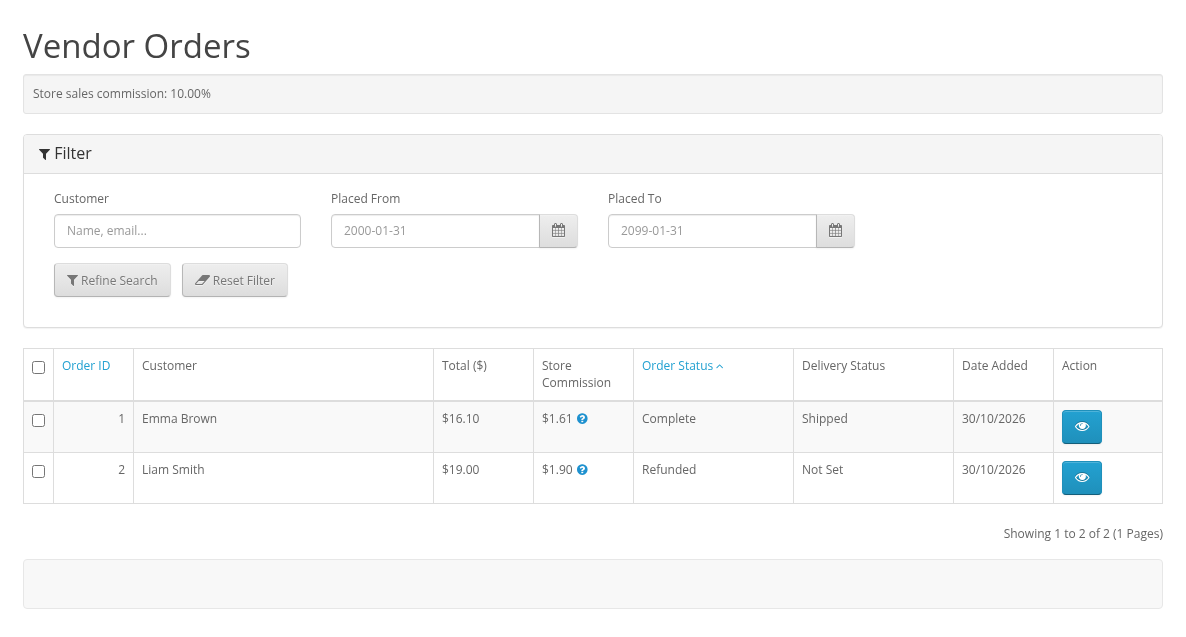
- The top line shows Store sales commission: your current commission rate.
- Filter: Customer (name, email...), Placed From, Placed To. Reset Filter clears it.
- Columns: Order ID, Customer, Total ($), Store Commission, Order Status, Delivery Status, Date Added. Click Order ID or Order Status to sort.
- The list has orders with a status. Orders that the buyer has not finished (for example, payment was not completed) are not listed.
Order details
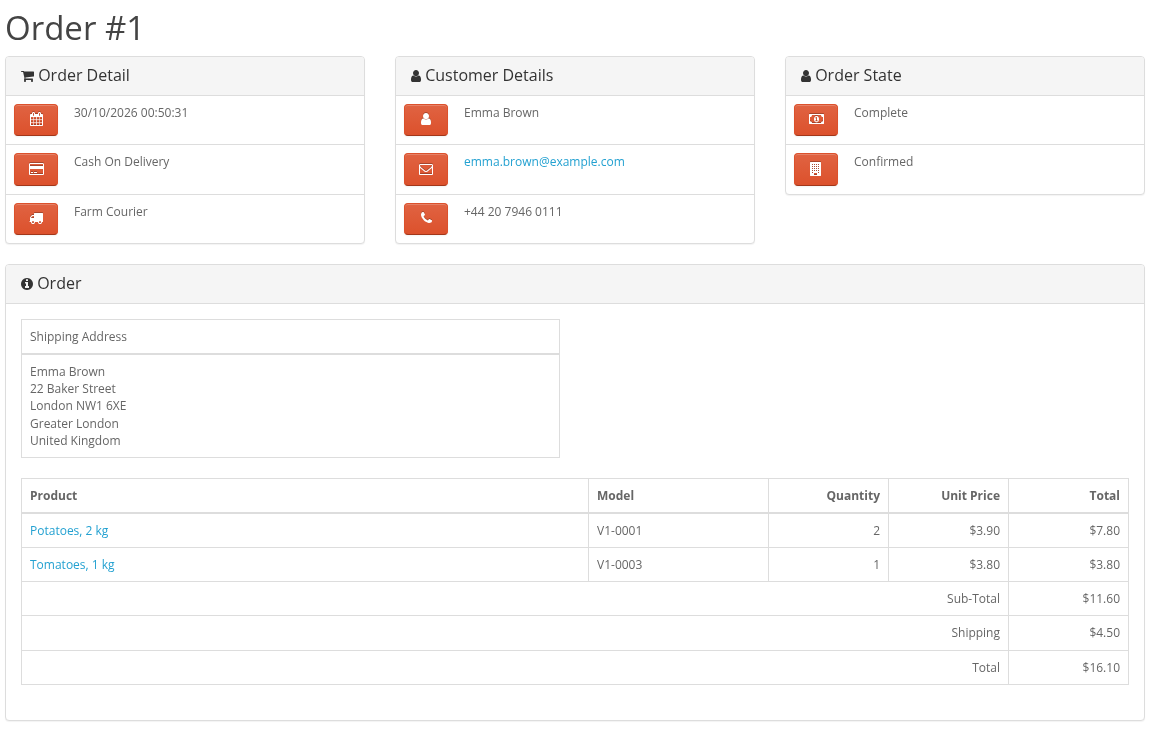
Click the view button of an order. The page "Order #N" has:
- Order Detail: date added, payment method, your shipping method;
- Customer Details: the customer name (a link to the "Customer Profile" page), email and telephone;
- Order State: Payment Status (the status of the whole order, set by the store) and Delivery Status (the status of your part);
- the shipping address;
- your products with Sub-Total, Shipping and Total.
Changing the delivery status
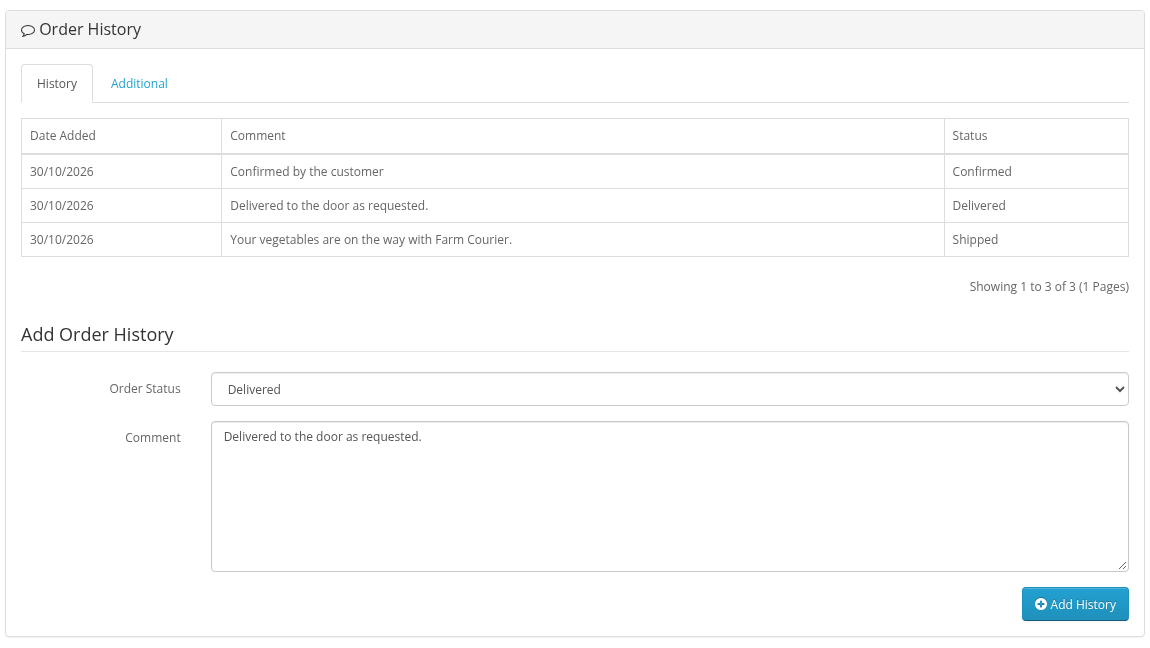
The History tab lists the delivery status changes. Below it you can add a new one:
- Select the Order Status (only the statuses the store allows for vendors).
- Enter a Comment if needed.
- Click Add History: "Operation has completed successfully."
The customer gets an email "Order update #N" with the new status and your comment.
You can change the status only while the current delivery status, or the order status if no delivery status is set yet, is one of the statuses allowed for vendors. For example, if the store sets the order to Canceled, you cannot change it. If the form is not shown, the store has not allowed vendor statuses or does not use delivery statuses.
Emails you receive and when you are paid
- "New Order #N" when a customer orders your products.
- "Status updated for Order #N" when the store changes the order status or your delivery status.
You are credited when the store sets the order to a complete status: your order total minus the store commission appears in My Account > Your Transactions as "Sale of order #N (store commission X%)". If the order is canceled or refunded later, the amount is taken back. Delivery statuses do not change your balance. The store pays you outside the store and records the payout as a negative transaction. See Commissions, Vendor Balance and Payouts.