For vendors: add, edit, copy, enable and delete products, submit them for approval and understand approval statuses. Open My Account > My Vendor Account > Products.
Product list
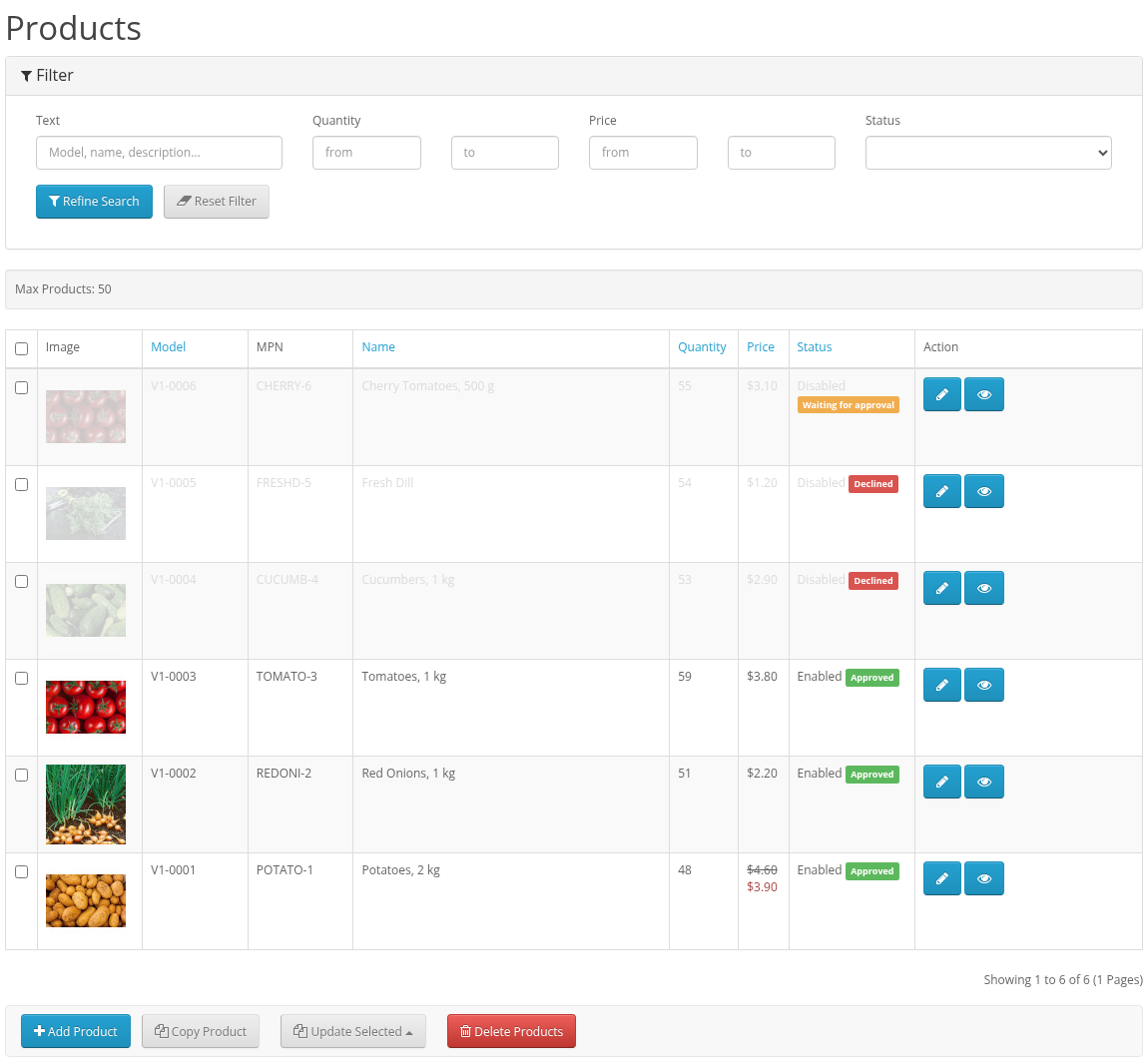
- The top line shows Max Products: how many products you may have.
- Filter: Text (model, name, description...), Quantity from-to, Price from-to, Status. Refine Search applies it, Reset Filter clears it.
- Columns: Image, Model, MPN, Name, Quantity, Price, Status. When the store approves products, each product has a label: Draft, Waiting for approval, Approved or Declined (point at it to see the reason).
- Buttons:
- Add Product opens an empty product form;
- Copy Product copies the selected products. A copy gets "(copy)" in its name, a new model, and is a disabled draft. It keeps the MPN of the original: change it, because the Product API finds products by MPN;
- Update Selected > Enable Selected / Disable Selected switches selected products on or off;
- Delete Products deletes the selected products after a confirmation. This cannot be undone.
When you reach the limit, new products and copies are refused: "You cannot add more products. The product limit reached". Ask the store to raise your limit.
Product form
The form has three tabs. Other modules may add more tabs, for example a Licenses tab.
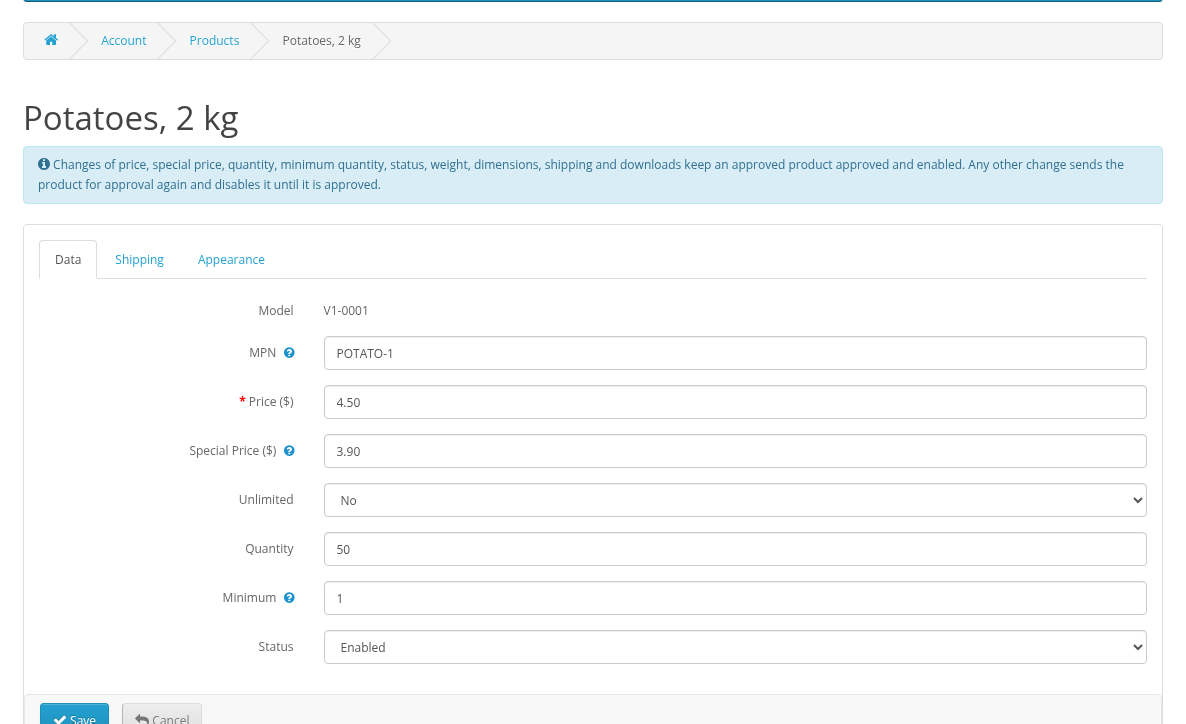
Data
- Model: created automatically, you cannot change it.
- MPN (Manufacturer Product Number): your own product code. It is also the product key of the Product API, so keep it unique.
- Price (required) and Special Price: "This is a product discounted price set on special events". Leave it empty for no special price.
- Unlimited: Yes means the stock is not counted. Quantity: the stock when Unlimited is No.
- Minimum: "This is a minimum quantity the customer has to purchase at once".
- Status: Enabled or Disabled.
Shipping
"Here you can set product parameters that are taken into account in shipping cost calculation."
- Shipping: Required or Not Required (for example, for electronic goods).
- Weight with Weight Units; Length, Width, Height with Length Units.
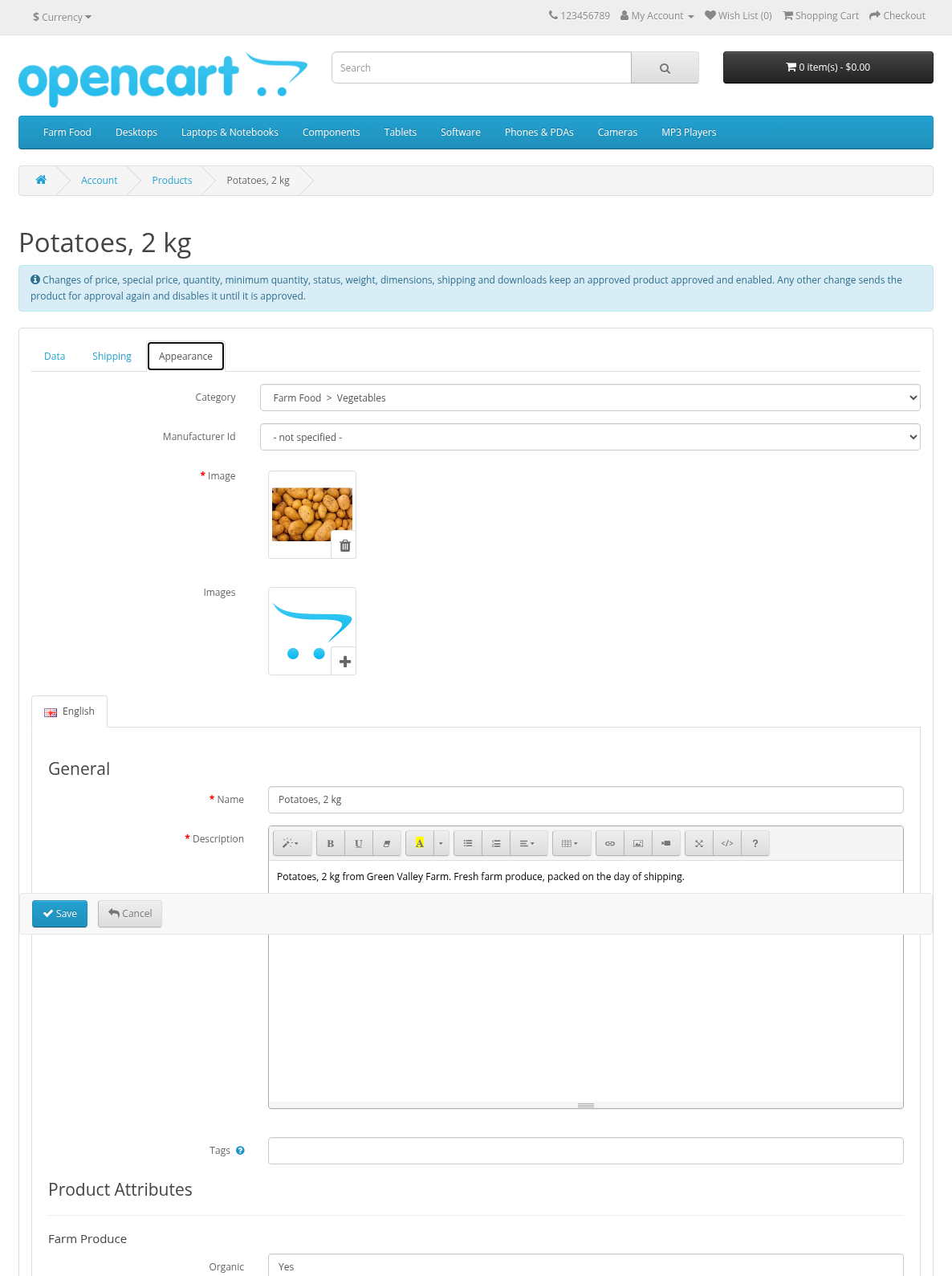
Appearance
- Category: one of the categories the store opened for vendors. Another category is not saved: "The selected category is not available for vendor products. Please select another category." If the store placed your product into a category that is not open for vendors, the product keeps it while you do not change the category. Manufacturer Id: one of the store manufacturers, or "- not specified -".
- Image (required): the main image. Images: additional images; drag an image onto another one to swap them. The main image is not moved by dragging.
- For each language: General (Name and Description required, Tags separated with commas) and Product Attributes: the attributes of the selected category. "There are no product attributes for the selected category" means the store has not set attributes for it.
The page address (SEO URL) and the meta title, description and keywords are created from the name, description and tags when you add the product.
Images and the file manager
Click an image box to open the image manager. You can upload jpg, jpeg, gif and png files and create folders. You see only your own images.
Saving and submitting for approval
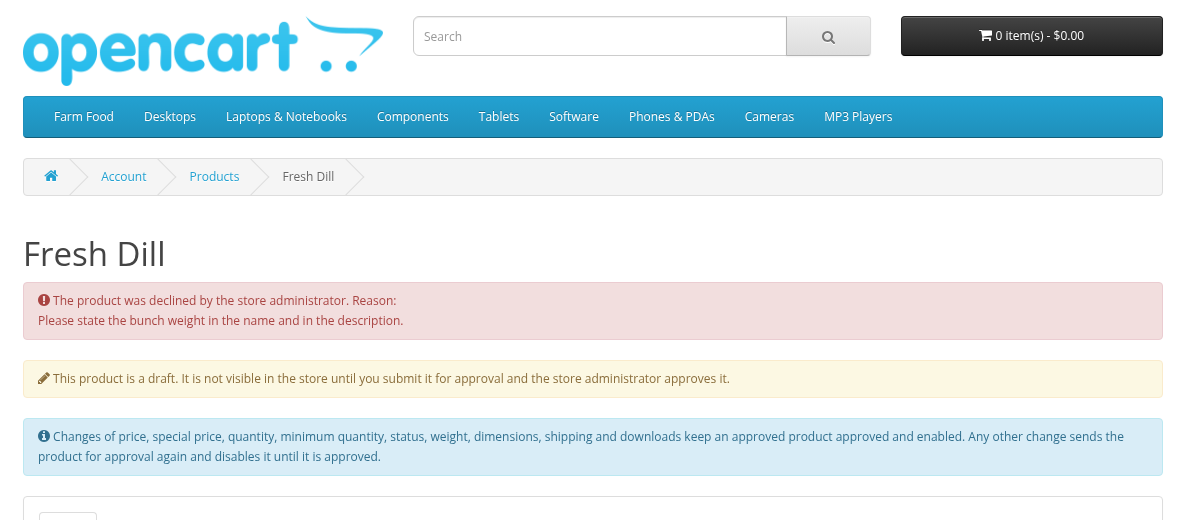
When the store approves products, the form shows the approval status at the top, and:
- Save keeps the current status. A new product is saved as a draft: "It is not visible in the store. Press 'Save and Submit for Approval' when the product is ready."
- Save and Submit for Approval saves the product and sends it to the store: "The product has been saved and submitted for approval." The product stays disabled until it is approved. After approval it is enabled.
- An approved product stays approved when you change only "price, special price, quantity, minimum quantity, status, weight, dimensions, shipping and downloads". Any other change sends the product for approval again and disables it until it is approved: "The changes require approval by the store administrator".
- You cannot enable a product that is not approved.
When the store does not approve products, Save is enough and you enable products yourself.
Declined products
A declined product is a disabled draft. The form shows "The product was declined by the store administrator. Reason: ...". Correct the product and click Save and Submit for Approval again. The reason is removed when you submit the product.