
How the store commission is calculated, when vendors are credited, where the vendor balance is and how to pay vendors.
Store commission
- Default store commission (%) in the settings is copied to each new vendor profile.
- Store Commission (%) in the Vendor tab of the customer is the rate of this vendor. Change it to give a vendor a different rate.
- The rate is saved in the vendor order when the order is placed. Later changes of the vendor's rate do not change existing orders, also when you edit the order.
- The commission is charged on the vendor order total: the vendor's products (without taxes) plus the vendor's shipping cost.
Commission amount = vendor order total x rate / 100, rounded to 2 decimals.
When vendors are credited
Vendors are credited by the main order status, not by the delivery status.
- When the order gets one of the statuses of the OpenCart setting Complete Order Status (System > Settings > Edit store > Option), each vendor in the order gets a customer transaction "Sale of order #N (store commission X%)" for the vendor order total minus the commission.
- When the order leaves the complete statuses (for example, it becomes Canceled or Refunded), the amount is taken back with a negative transaction "Sale of order #N is taken back".
- Moves between two complete statuses, or between two other statuses, change nothing.
- Delivery statuses and Confirm Delivery do not move money.
- Orders completed before version 1.0.5.0 are not recalculated.
Check your Complete Order Status list before the first sales: only the statuses you check there credit vendors.
Worked example
A vendor has a commission of 10%. The buyer orders the vendor's products for 100.00 and chooses the vendor's shipping for 10.00.
| Step | Vendor transaction | Vendor balance |
|---|---|---|
| Order placed, status Pending | none | 0.00 |
| Status Complete (a Complete Order Status) | +99.00 "Sale of order #12 (store commission 10.00%)" | 99.00 |
| Status Refunded (not complete) | -99.00 "Sale of order #12 is taken back" | 0.00 |
| Status Complete again | +99.00 | 99.00 |
Vendor order total 110.00, commission 11.00, credit 99.00. Transactions are in the default store currency.
Vendor balance
The vendor balance is the sum of the vendor's customer transactions.
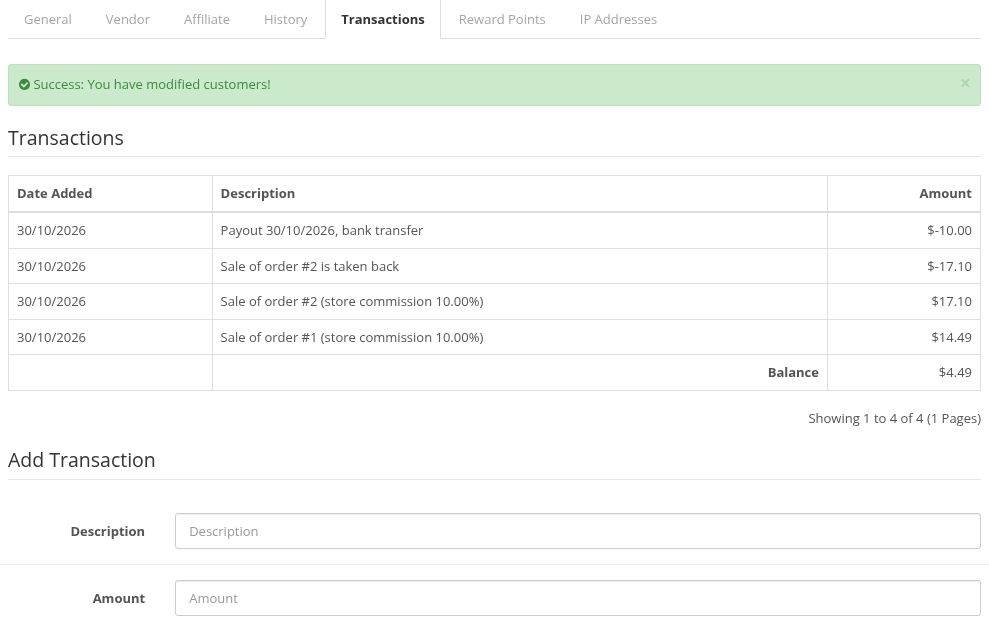
- Admin: Customers > Customers, edit the vendor, Transaction tab. You see each sale, take-back and payout, and the balance.
- Vendor: My Account > Your Transactions in the storefront (the standard OpenCart page).
Paying vendors
The buyer pays the store; Multivendor does not send money to vendors. We recommend this procedure:
- Open the vendor's Transaction tab and check the balance.
- Pay the vendor outside the store (bank transfer, PayPal and so on).
- Add a transaction with a negative amount, for example "-99.00", and a description such as "Payout 2026-10-30, bank transfer".
The balance goes down to what you still owe. The vendor sees the payout in Your Transactions. OpenCart also emails the vendor its standard "Affiliate Credit" message about the new transaction.
Note that OpenCart can also use the customer balance as store credit in checkout, if the Store Credit order total is enabled. If vendors should not spend their earnings in your store, keep this order total disabled.