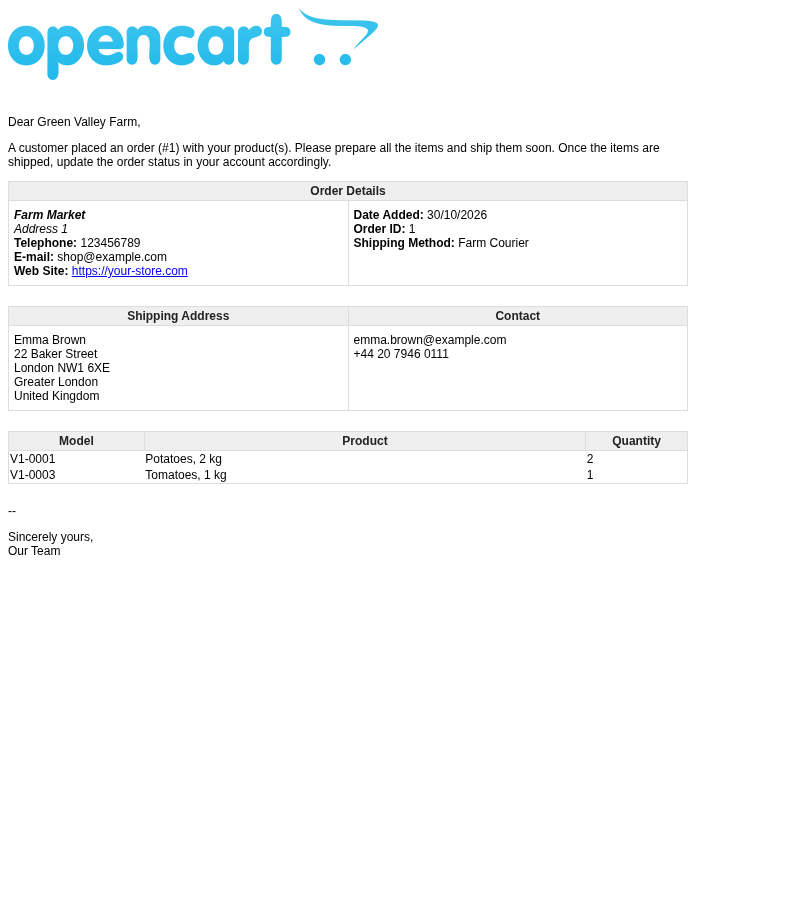
One checkout creates one OpenCart order and a vendor order for each vendor in it. Follow and change delivery statuses, edit orders and know which emails are sent.
How an order is split
When a buyer orders products of several vendors:
- OpenCart creates one order with all products, as usual. It has one order status, one payment and one set of totals.
- For each vendor in the order the module adds a vendor order: its products, the shipping method and cost chosen for this vendor, the vendor order total, the store commission rate and amount, and a delivery status.
- Store products (without a vendor) stay in the main order only, without a vendor order.
Vendor order total = the sum of the vendor's product lines (without taxes) + the vendor's shipping cost. Taxes, coupons, vouchers and reward points are applied to the main order only.
Vendor orders in the admin order page
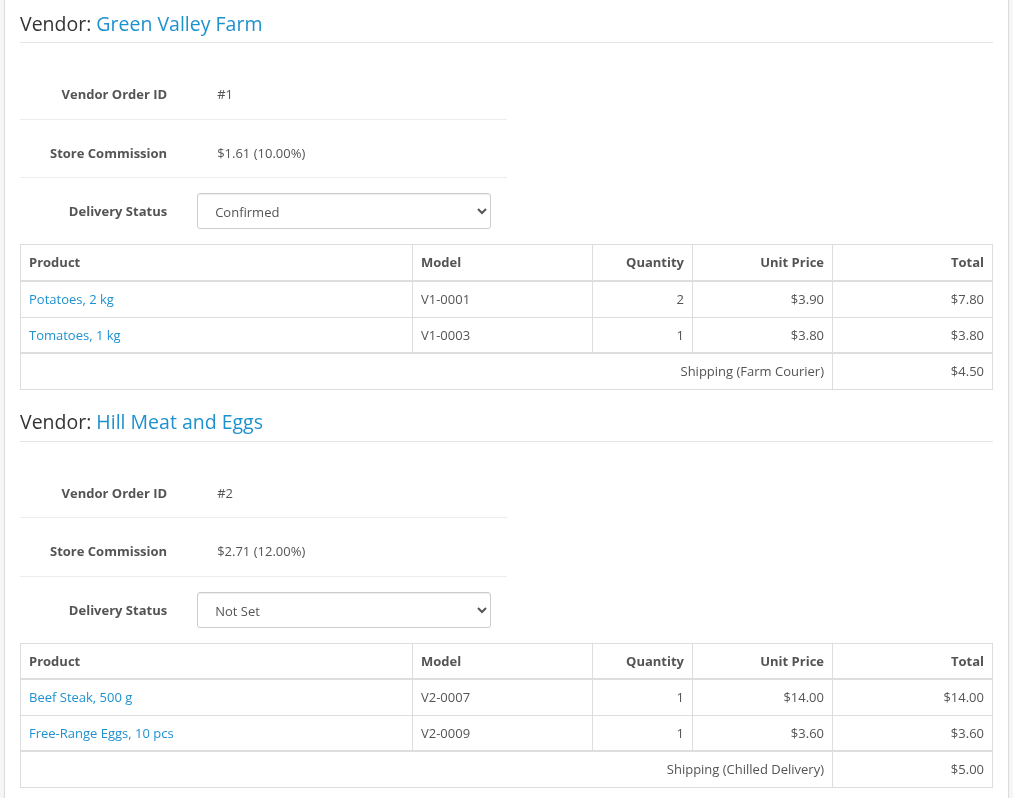
Open Sales > Orders and an order. Instead of one product table, the page shows a block for each vendor: "Vendor: name", the products, the vendor's shipping and:
- Vendor Order ID;
- Store Commission: the amount and the rate, for example "1.50 (10%)";
- Delivery Status, with Not Set until somebody sets it.
To change the delivery status, select a new status. Notify Customer and Comment appear; click Apply. The change is added to the order history with the comment, the vendor gets the email "Status updated for Order #...", and the customer gets an email if Notify Customer is checked. The list has all order statuses; the vendor order statuses of the settings are shown in bold.
Store products (without a vendor) are listed below the vendor blocks under a heading with your store name, followed by the order totals.
Order status and delivery status
| Order status | Delivery status | |
|---|---|---|
| Belongs to | the whole order | one vendor order |
| Changed by | the administrator (and payment modules), as usual | the administrator; the vendor (only vendor order statuses); the customer with Confirm Delivery |
| Credits vendors | yes, when it becomes a Complete Order Status (see Commissions) | no |
A vendor can set a delivery status only when the current delivery status is one of the Vendor Order Statuses, or, if it is not set yet, when the order status is one of them. See Orders (Sales).
Delivery confirmation and the hidden-status mode
- With Ask customer for delivery confirmation on, the customer sees Confirm Delivery for each vendor order with shipping, until its delivery status is the 'Delivery Confirmed' Status. The button sets this status with the comment "Confirmed by the customer". Select this status in the settings. If it is empty, the button is shown for every vendor order, also confirmed ones, and a click clears the delivery status without a message.
- With Hide delivery status completely on, nobody sees or changes delivery statuses: they are hidden in the admin, the vendor area, the customer account and vendor emails. Use it for stores without physical delivery.
Editing orders
When you edit an order in the admin (Sales > Orders > Edit), the Totals step shows the products grouped by vendor with a shipping method for each vendor. After saving:
- existing vendor orders keep their ids, delivery statuses and commission rates; totals and commission amounts are recalculated;
- a vendor order is added for a vendor whose products you added, and removed for a vendor whose products you removed.
Emails to vendors and customers
| Sent to | When | |
|---|---|---|
| New Order #N | vendor | the order is placed (gets its first status) |
| Status updated for Order #N | vendor | the order status changes later; also when the administrator changes the delivery status |
| Order update #N | customer | the delivery status is changed with Notify Customer (always when the vendor changes it) |
"New Order" and the status update emails on order status changes are sent only when at least one Vendor Order Status is checked in the settings. With an empty list vendors learn about new orders only from their Sales page.
The usual OpenCart order emails to the customer and the store are not changed.