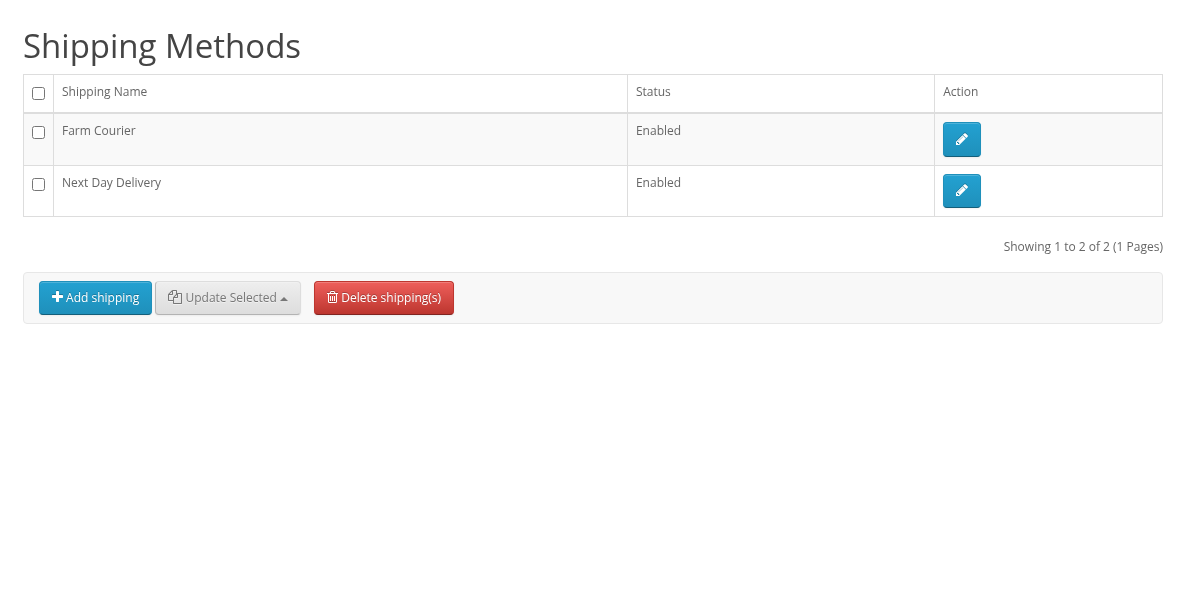
For vendors: create your own shipping methods and rates when the store uses vendor shipping rates.
When this page is available
My Account > My Vendor Account > Shipping Methods is a link only when the store has set "Rates are defined by vendors manually" and uses the Custom Shipping Methods extension. Otherwise the item is not a link and the store's own shipping methods are used for your products.
When the page is available, buyers can choose only your methods for your products. Without at least one enabled method, buyers cannot finish the checkout with your products. Set up shipping before you submit products.
Adding a method and rates
- Click Add shipping.
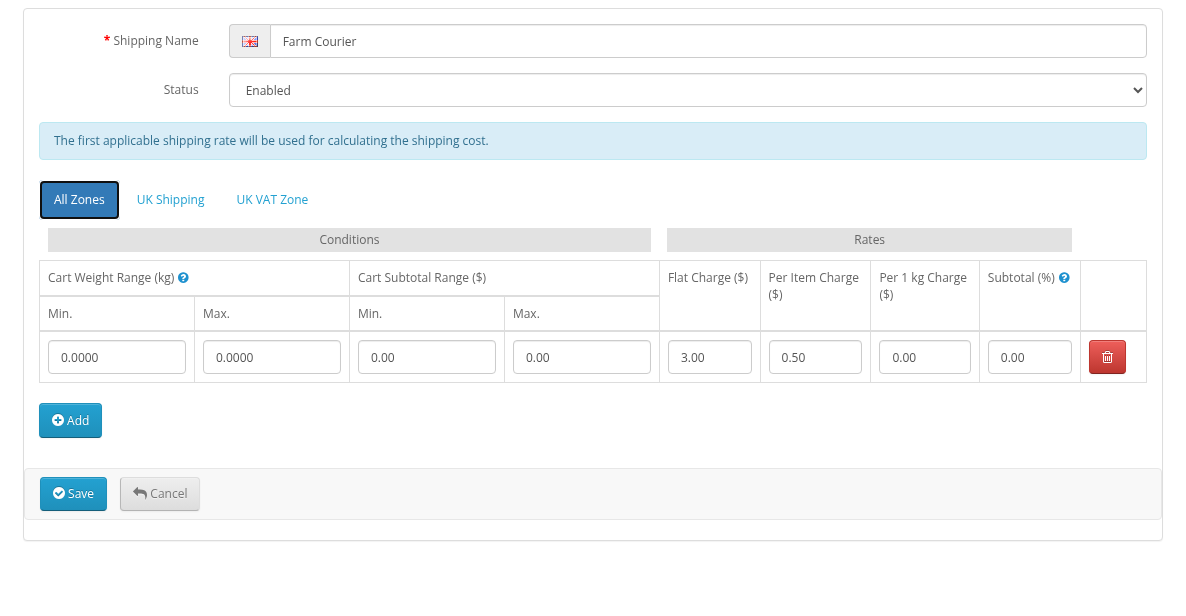
- Enter the Shipping Name for each language and set Status.
- Select a zone tab. The store's geo zones and "All Zones" are listed.
- Click Add to add rate rows. "The first applicable shipping rate will be used for calculating the shipping cost." Each row has: - Conditions: Cart Weight Range (kg) (Min., Max.) and Cart Subtotal Range ($) (Min., Max.); the units are the store defaults, of your products in the cart; - Rates: Flat Charge ($), Per Item Charge ($), Per 1 kg Charge ($) (the store weight unit) and Subtotal (%) ("Takes percentage value of subtotal and defines it as a shipping cost").
- Click Save.
Weight and subtotal are taken only from your products in the cart, in the store's default weight unit and currency.
Enabling, disabling and deleting methods
The list Shipping Methods shows Shipping Name and Status.
- Update Selected > Enable Selected / Disable Selected switches the selected methods on or off.
- Delete shipping(s) deletes the selected methods after a confirmation.
- The edit button opens the method form.