
In this example we set a new price, a quantity discount and a special price for all iPod models of the demo store, and we remove the option Extended Warranty from them. It takes one save.
1. Build the group
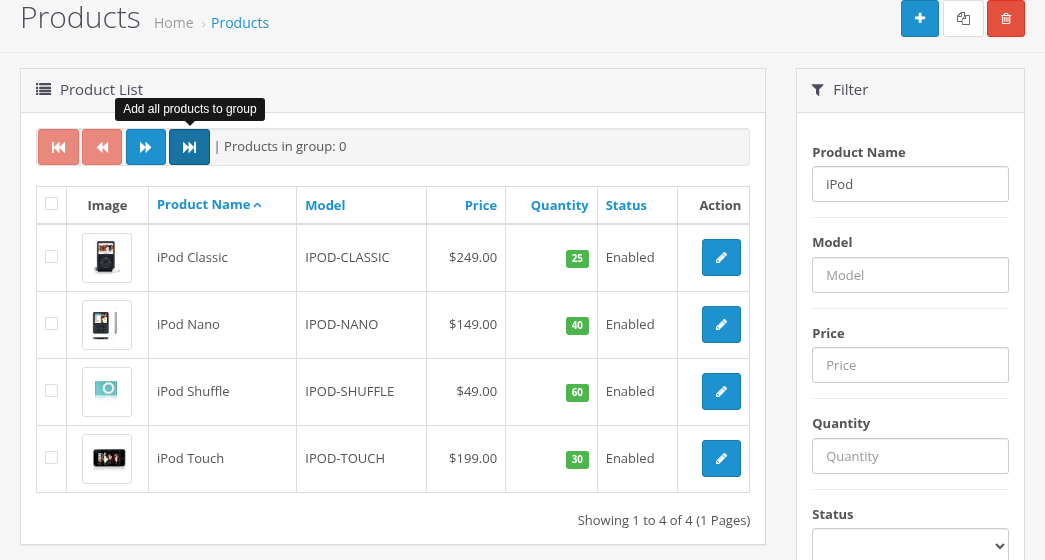
- Open Catalog > Products.
- Enter
iPodin Product Name of the filter and click Filter. - Click Add all products to group (the blue button with the double arrow, the last one in the group toolbar above the list).
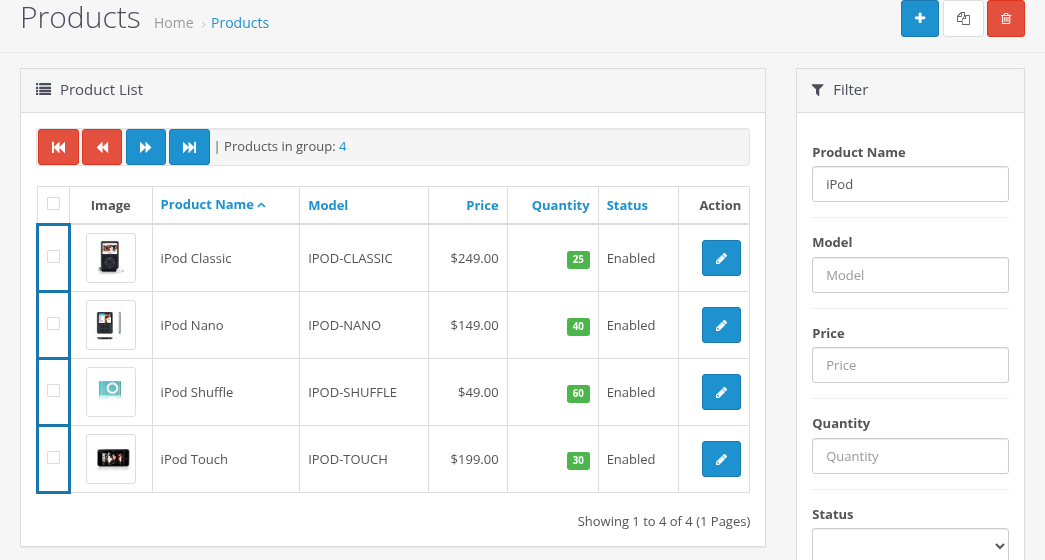
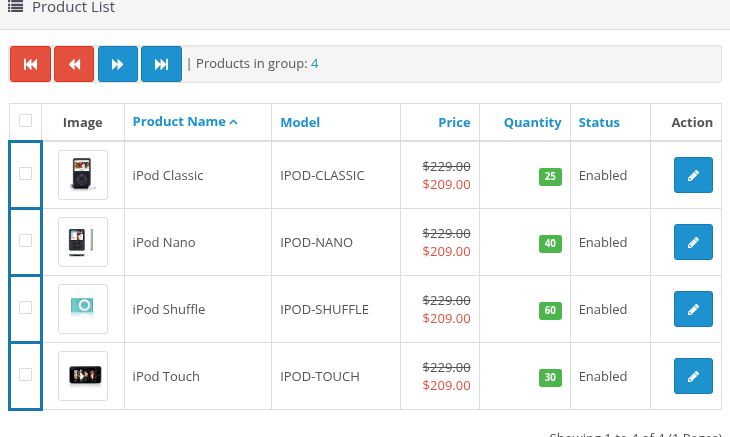
The counter Products in group shows 4, and the checkbox cells of the four products get a blue frame.
2. Open one product
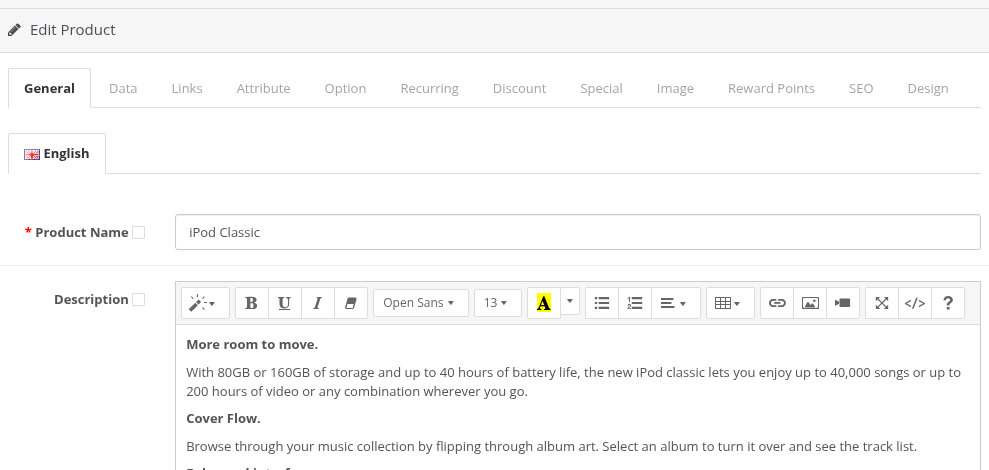
Click Edit next to iPod Classic. The product form now has a small checkbox next to every field that can be copied to the group.
3. Change the fields and check them
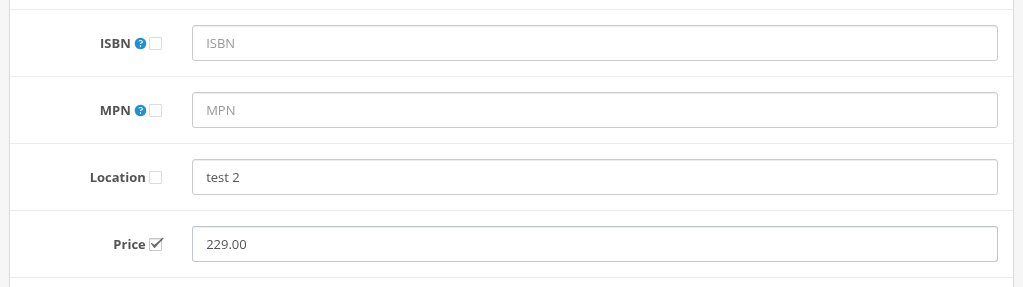
- On the Data tab enter the new price
229.00and check the checkbox next to Price. - On the Discount tab add a row (quantity 3, price 219.00) and check the checkbox at the start of the row.
- On the Special tab add a row (price 209.00) and check its checkbox.
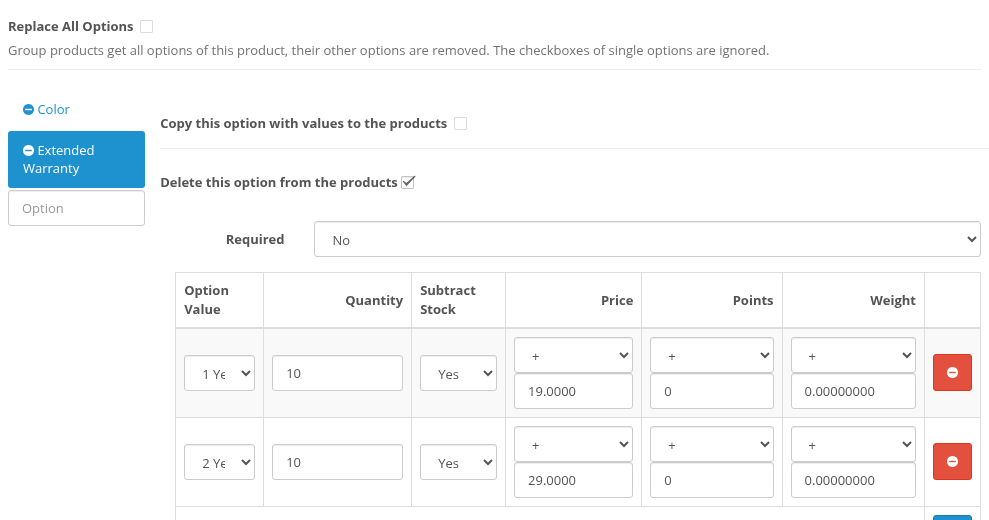
- On the Option tab click Extended Warranty and check Delete this option from the products.
4. Save
Click Save. Because an option is going to be deleted, the browser asks for a confirmation:
These options will be deleted from 4 products (this product and the group products): "Extended Warranty". Continue?
Click OK. The product list opens with the result:
Success: You have modified products! Option "Extended Warranty" was deleted from 4 products.
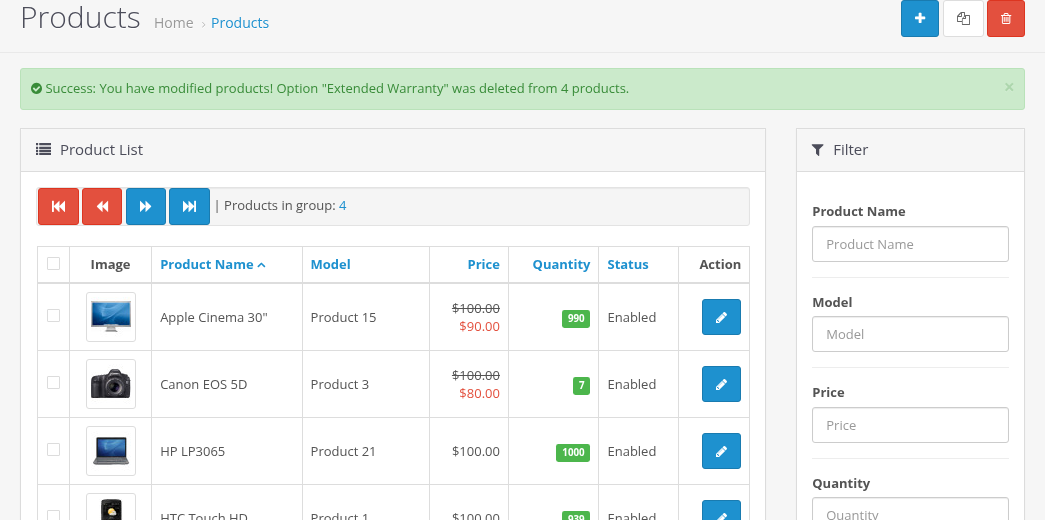
All four iPods now cost $229.00, have the quantity discount and the special price $209.00, and none of them has the Extended Warranty option. Their names, descriptions, images, other options and all other fields stay as they were.
What to remember
- Only checked fields are copied. A field that you change but do not check is saved only in the product you edit.
- The group stays after saving. Clear it (red button with the double arrow) when you are done, so that the next product you save does not change the group by accident.
- There is no undo. Try a new kind of change on two or three products first. See Messages, Confirmations and Safety.