What buyers see: the vendor list, vendor pages with products and reviews, and vendor links on product pages.
Vendor list
The page "Find Your Favorite Vendor" lists active vendors alphabetically, grouped by the first letter, with a letter index ("Vendor Index:") at the top. Each name opens the vendor page.
The address is index.php?route=extension/ka_extensions/ka_multivendor/vendors.
The vendor list is not linked in the store menu by default. Add a link yourself, for example to the header menu or the footer of your theme, or as a link in an information page.
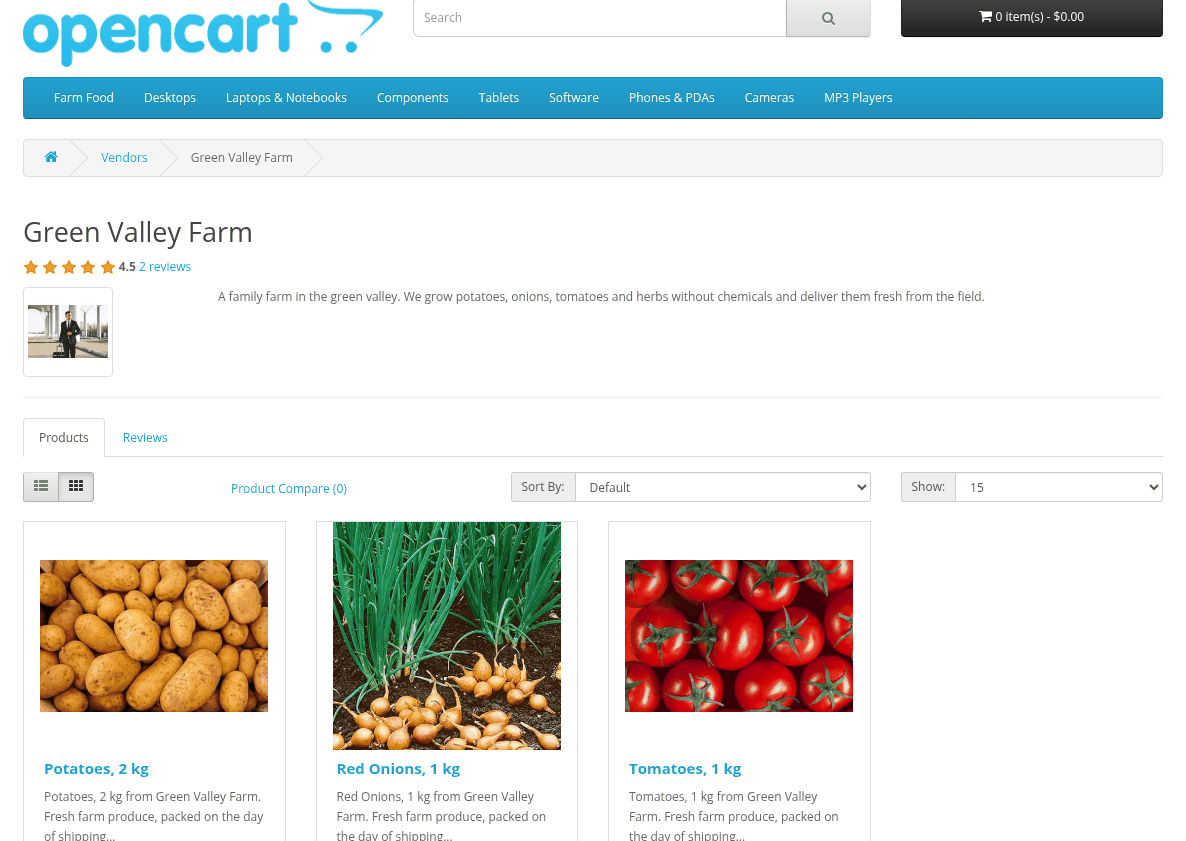
Each vendor name shows the rating and the number of reviews. Vendors that are disabled, have a disabled customer account or have no public name in the current language are not listed.

Vendor page
The vendor page shows the vendor logo, name and description, the rating with the number of reviews, and two tabs:
- Products: the vendor's enabled products, with the usual Sort By (Default, Name, Price, Rating, Model) and Show options;
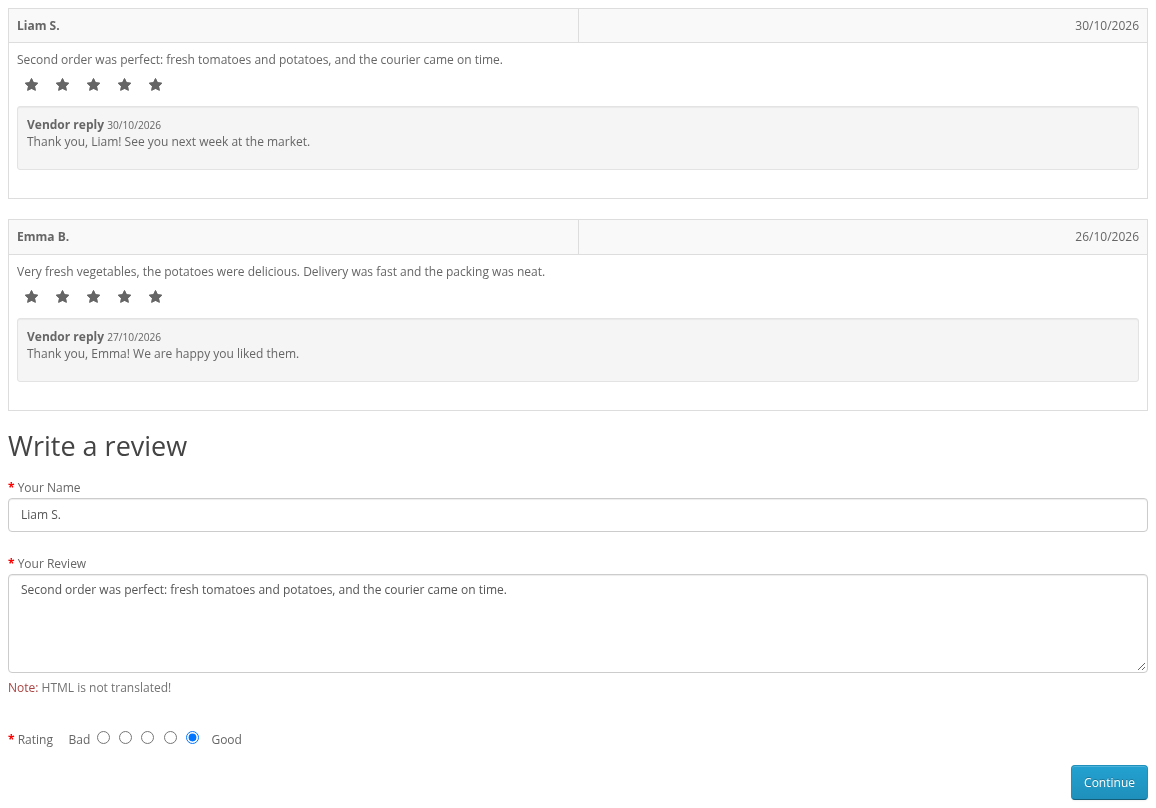
- Reviews: approved reviews with vendor replies, and the review form.
A missing or disabled vendor opens the vendor list instead. The breadcrumb of the vendor page links to the vendor list.
The address is index.php?route=extension/ka_extensions/ka_multivendor/vendor&vendor_id=N, where N is the customer ID of the vendor.
Vendor name on the product page and in search
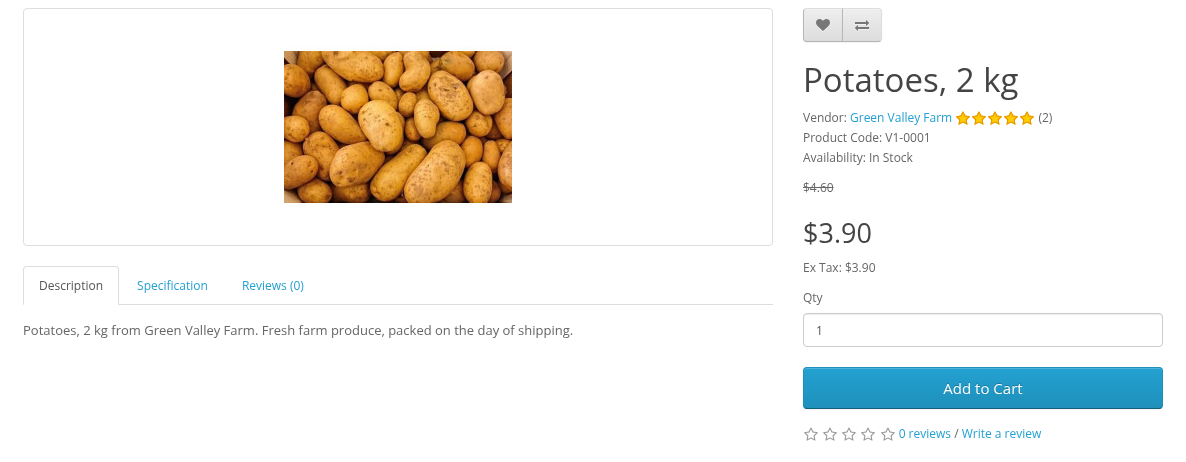
- The product page shows "Vendor: name" with a link to the vendor page, and the vendor rating with the number of reviews if the vendor has approved reviews.
- Search results can be limited to one vendor with
index.php?route=product/search&vendor_id=N.
Writing a vendor review
- Log in and open the vendor page.
- Open the Reviews tab and Write a review.
- Enter Your Name and Your Review, choose the Rating from Bad to Good, and click Continue.
Guests see "Please login or register to review" instead of the form. A vendor sees no review form on its own page.
The review waits for moderation: "Thank you for your review. It has been submitted to the webmaster for approval." Until it is approved you can change it with the same form. A purchase from the vendor is not required. See Vendor Reviews and Ratings for all rules.