
This page is written for your customers. You can link to it from your store, for example from the Contact Us page.
Opening the tickets
Log in to the store and open My Account > Tickets. The link is also in the account menu on the right.
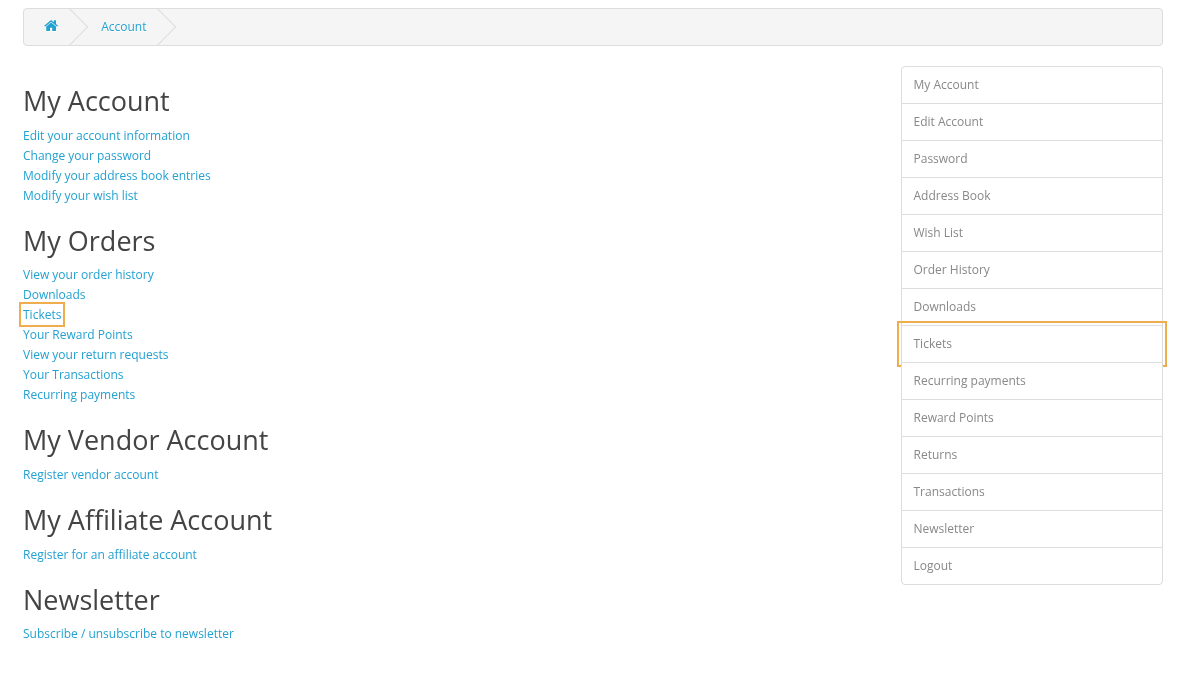
The tickets are available after you have confirmed your email address. If you see the message "Please verify your email address...", open Edit your account information, click Verify Email and follow the link from the email you receive. If you have never set a password, for example because your account was created when you wrote us an email, use Forgotten Password on the login page: it also confirms your email.
Your tickets
The list shows your tickets with the number, subject, status and the date of the last message. Use Text and Status to find a ticket, click the subject to open it.
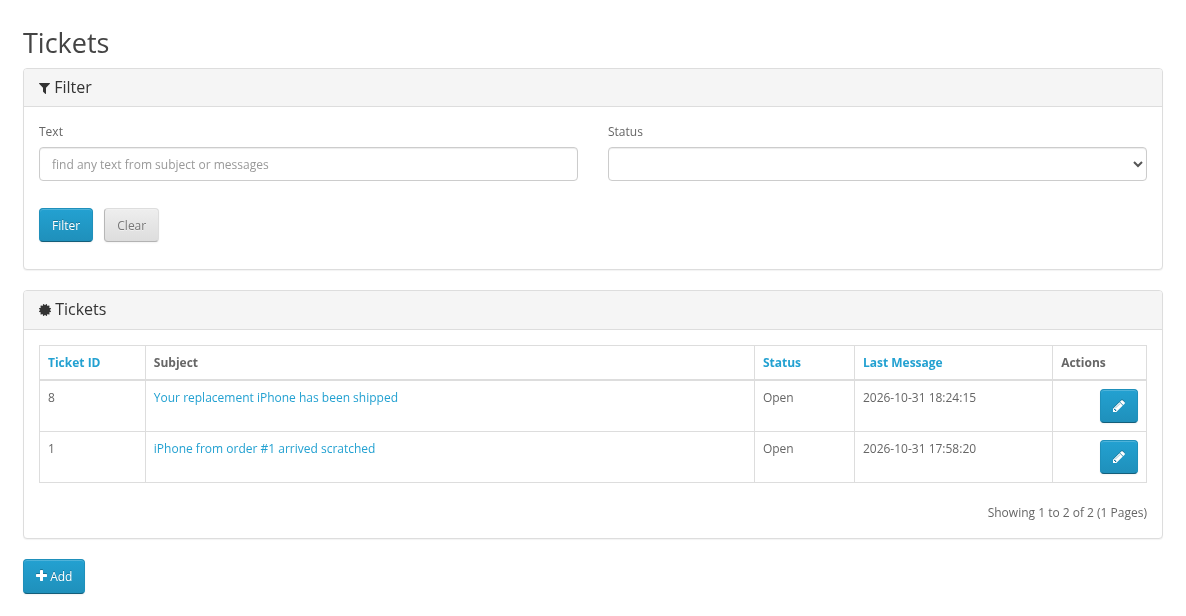
You see all tickets where you take part, also the tickets you started by email and tickets where somebody put you in copy.
Asking a new question
- Click Add under the list.
- Enter the Subject and the Message. You can insert images into the text: paste a screenshot, drag a picture into the text or use the picture button.
- Attach files with Add files if needed. The limits are shown under the button.
- Click Submit.
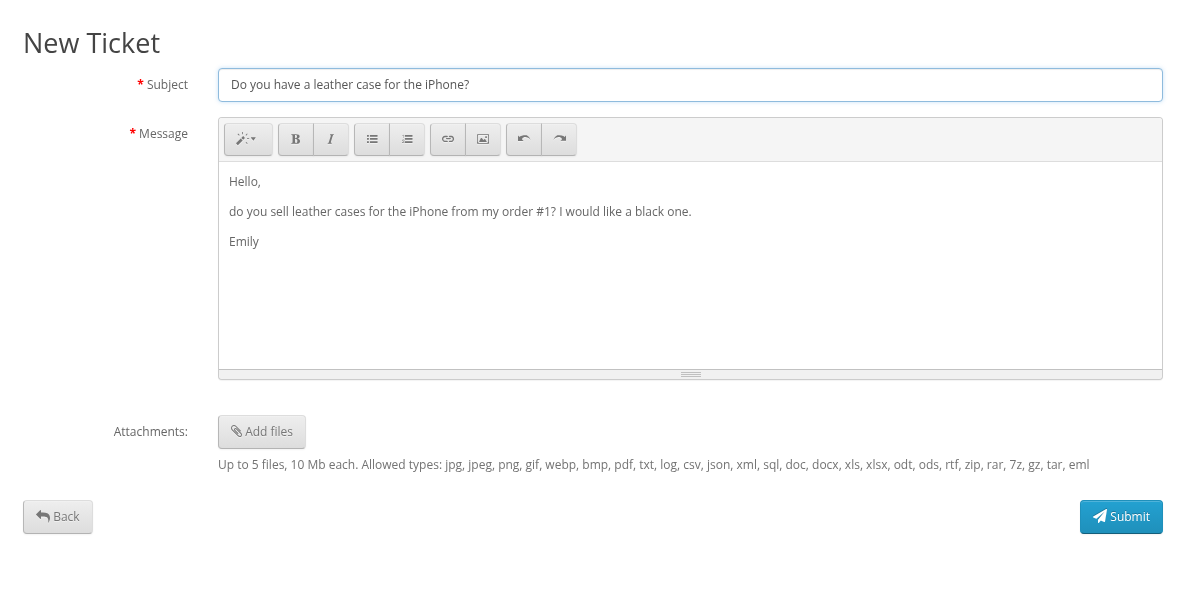
The store team gets your question and answers by email and on the ticket page.
A question about an order
Open My Account > Order History and click Get Support (the pencil button) next to the order. The new ticket form opens with the subject "Question about order #N" filled in.

Reading and answering
Open a ticket to see the whole conversation. Answers of the store team come to your email too.
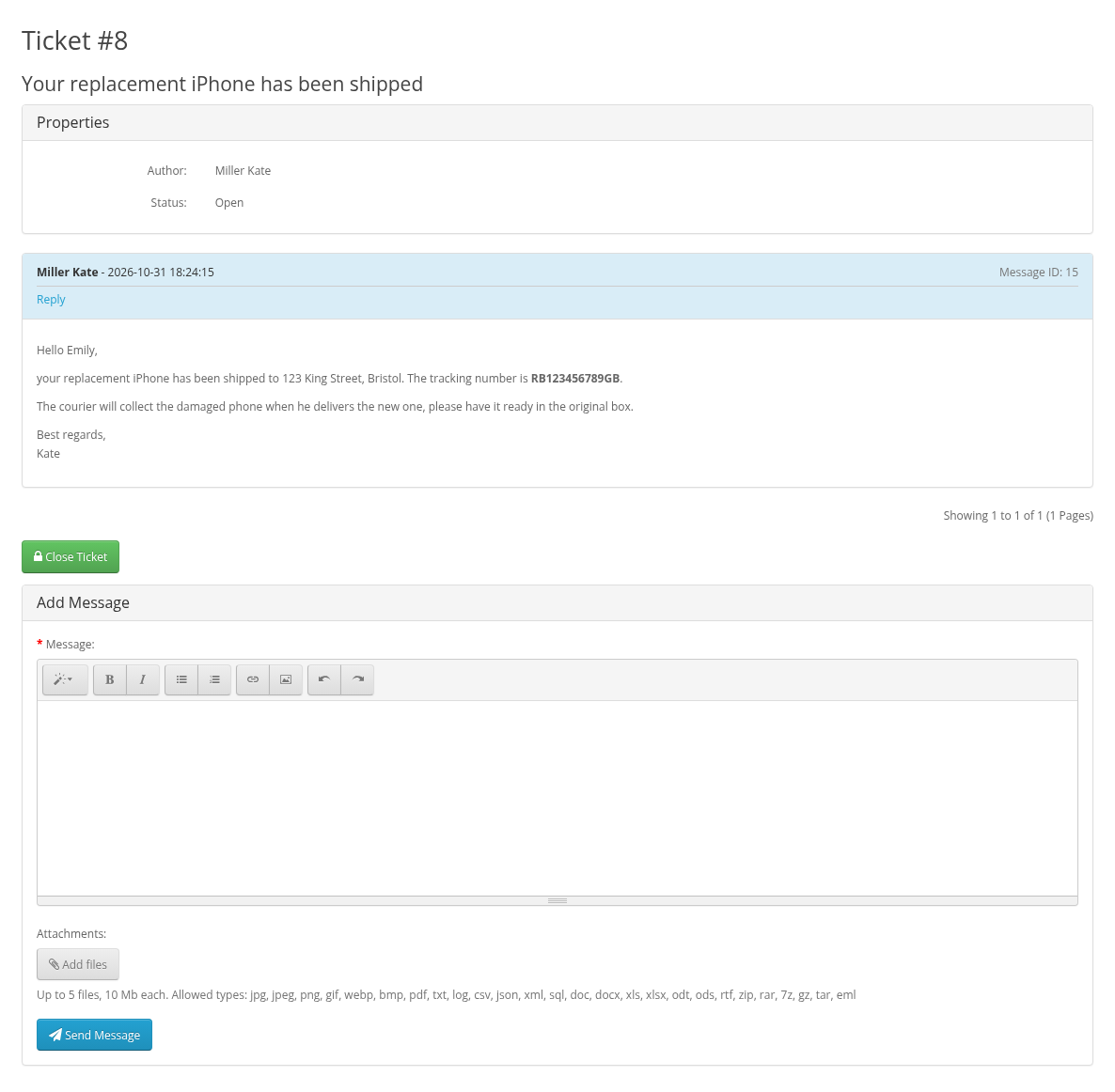
- To answer, write in Add Message at the bottom and click Send Message. Reply under a message quotes it in your answer.
- Click an image to see it full size; click a file name to download the file.
- When your question is solved, click Close Ticket. If you write again later, the ticket opens again.
You can also answer from your mailbox: simply reply to any email of the ticket (see Writing by Email and the Contact Form).